~learn.
Learn · the guide · 2-minute read for the basics

How System Design Mastery works.

A free course of 11 worlds, 66 core lessons, 10 interview bosses and 11 side quests, built like a game. Reading never needs an account. This page explains every screen, what each number means and where to find things. Here is the whole idea in thirty seconds:

  1. Read a lessonEach lesson is split into stages. Start anywhere; nothing is locked.
  2. Clear stagesA stage clears after real reading. Quick checks inside test you as you go.
  3. Earn XP+10 a stage, +60 a lesson, +5 per quick check right first time.
  4. ReviewWhat you miss comes back in the daily standup, right before you forget it.
  5. Beat the boss & trialEnd each world with a timed interview and the week's MCQ parts.
  6. Climb leaguesSigned in, your activity scores weekly points. The top of each league moves up.
at a glance · the three places people ask about

Notebook, progress, Arena.

notebook tab

Notebook

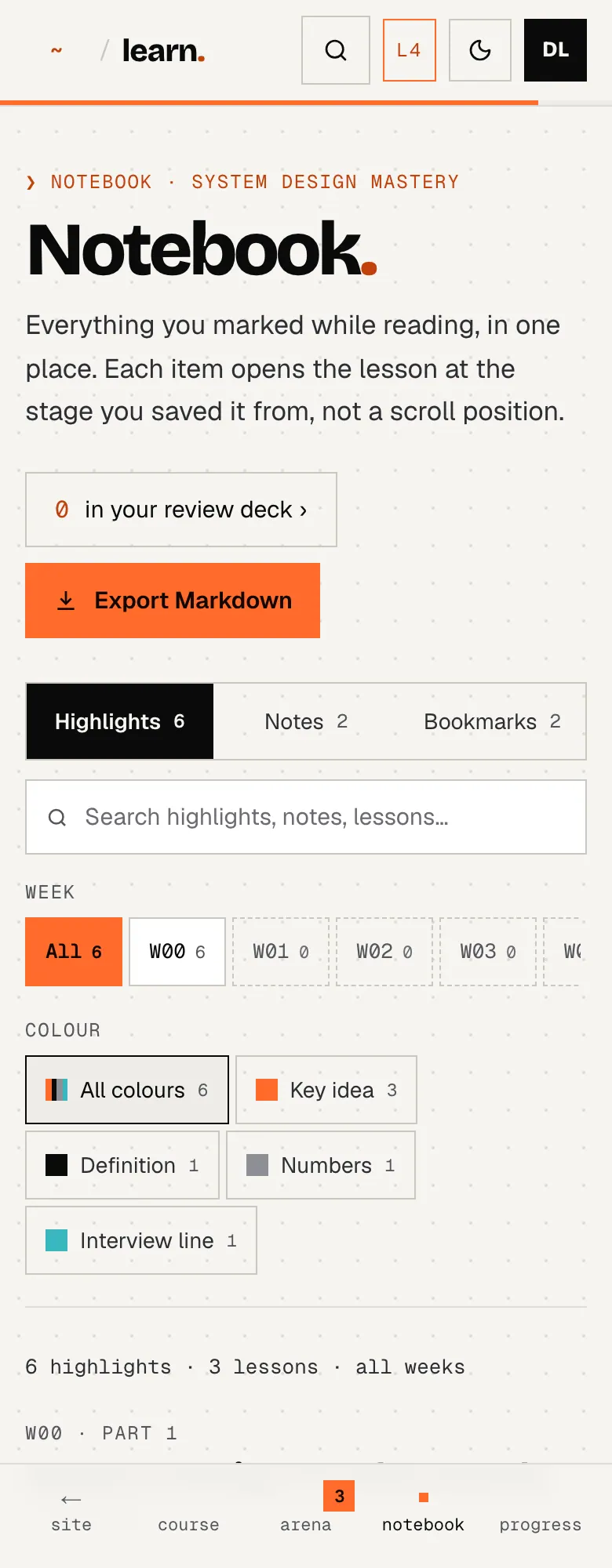
The Notebook: tabs for highlights, notes and bookmarks, search and filters, and saved passages grouped by lesson with 'Open at' links.

Everything you save while reading: highlights, notes and bookmarks, in one searchable place.

  • Select any text in a lesson to save it
  • See it grouped by lesson, filter by week or colour
  • Jump back to the exact stage you saved it from
  • Turn a highlight into a review card; export as Markdown
how it works
progress tab

Track your progress

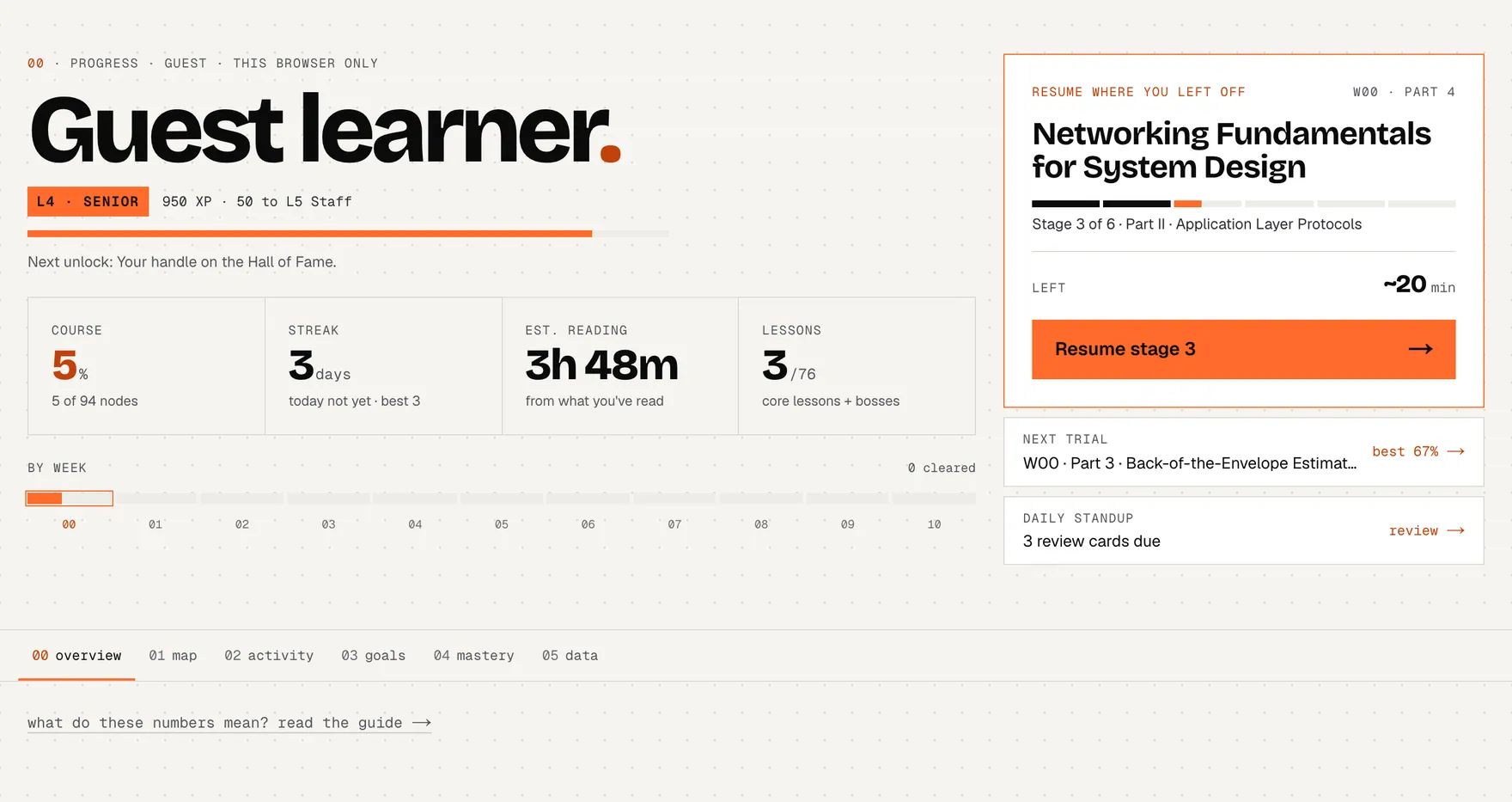
The Progress page overview: level and XP, course percentage, streak, reading time, lessons done, progress by week, the resume card, next trial and the daily standup.

The stage bar in every lesson, and the Progress tab for the whole course.

  • See which stage you're on and minutes left
  • Resume exactly where you stopped
  • Course map of every lesson, boss and trial
  • Streak, activity heatmap, weekly goal, your data
  • Share a public page with friends (off until you turn it on)
how it works
arena tab

Arena

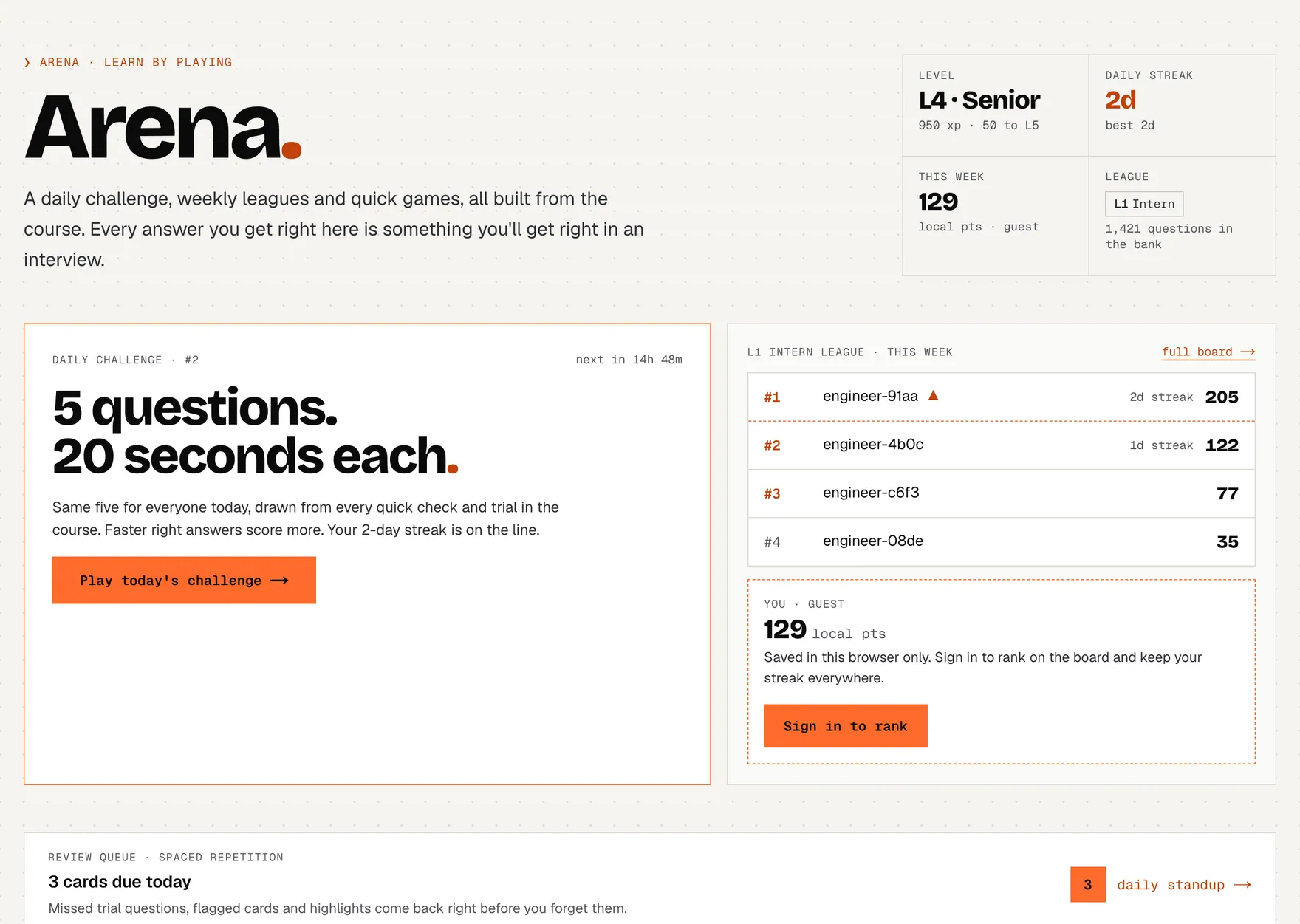
The Arena: your level, daily streak, weekly points and league; today's daily challenge; your league's top five this week; and the review queue.

Practice that feels like a game: a daily challenge, weekly leagues, quick games and your review queue.

  • 5 questions × 20 s every day, same for everyone
  • Weekly leagues and a leaderboard (signed in)
  • 3 quick games + 6 Playground boards
  • The daily standup: cards due for review
how it works
the one thing to know

XP and leaderboard points are two different scores.

XP
  • Your personal score. It only goes up (unless you reset).
  • Earned for almost everything: stages, lessons, quick checks, trials, bosses, reviews, games, even exploring the rest of the site.
  • Decides your level, L1 Intern to L6 Principal, shown in the header.
  • Works as a guest (saved in this browser); signed in it follows you.
Leaderboard points
  • A weekly competition score. The week resets Monday 00:00 IST.
  • Only signed-in course activity counts, and only what the server can check.
  • Fixed amounts per action, at most 400 a day (table in the Arena).
  • Decides your rank and your league. Leagues reuse the level names but are separate from your XP level.
01 · the course map

Worlds, lessons, stages, bosses, trials.

The course hub shows the whole campaign as a skill tree. Every row is a world; every square is something you can open right now.

himanshukukreja.in/learn/system-design-mastery
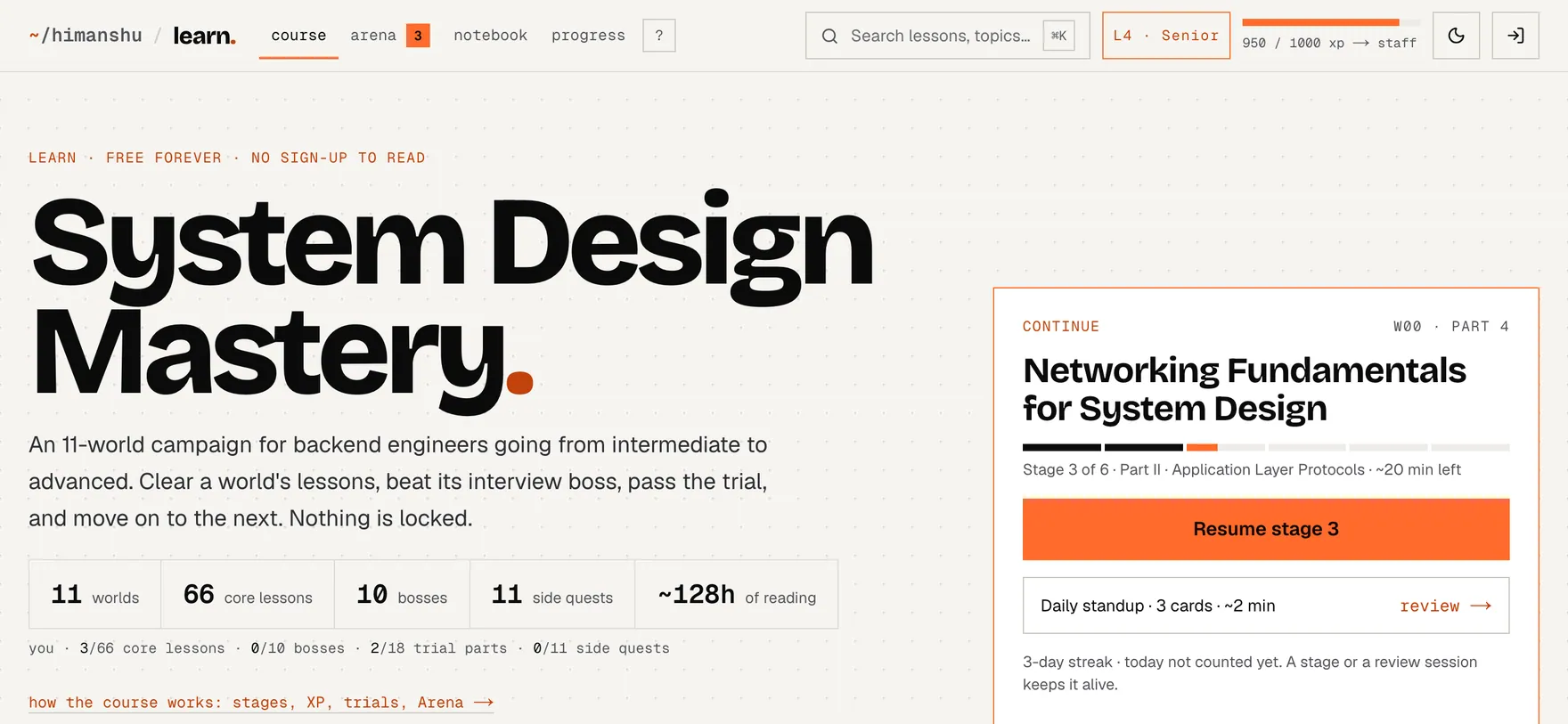
The course hub: the course tabs in the header, the course title with its numbers, and a Continue card for the lesson in progress with a daily standup link.
  1. Course tabs: course · arena · notebook · progress
  2. Your level and XP. Click it for the quest log
  3. What the course holds, and what you have done
  4. Continue: the lesson and stage you were on
  5. Daily standup: review cards due today
himanshukukreja.in/learn/system-design-mastery
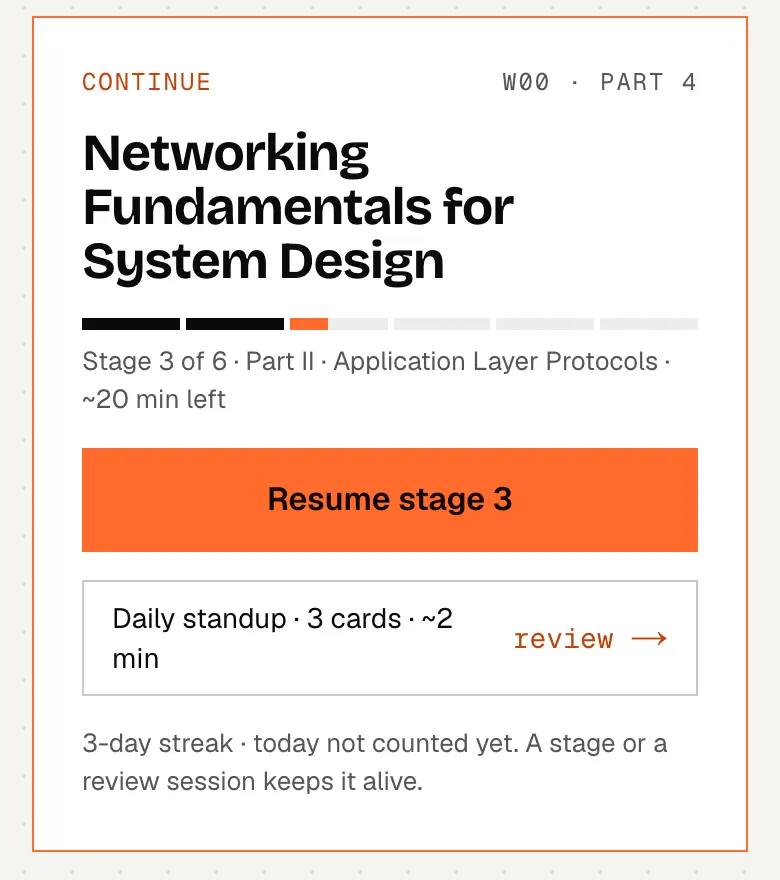
The Continue card on a phone, above the course dock.
  1. Continue: the lesson and stage you were on
  2. Daily standup: review cards due today

A world is one week of the course: 11 of them, from Week 00 Foundations to Week 10. A typical world has a Preview and 5 day lessons, then a boss (a timed mock interview, the diamond) and, for Week 00, Week 01, Week 02, a trial: the week's multiple-choice questions split into parts (the T boxes). Week 00 is different: six Foundations parts instead of days.

A lesson is split into stages (Part I, Part II… or Phase 1, 2… in a boss). Stages are how progress is saved: you resume by stage, not by scroll position.

himanshukukreja.in/learn/system-design-mastery
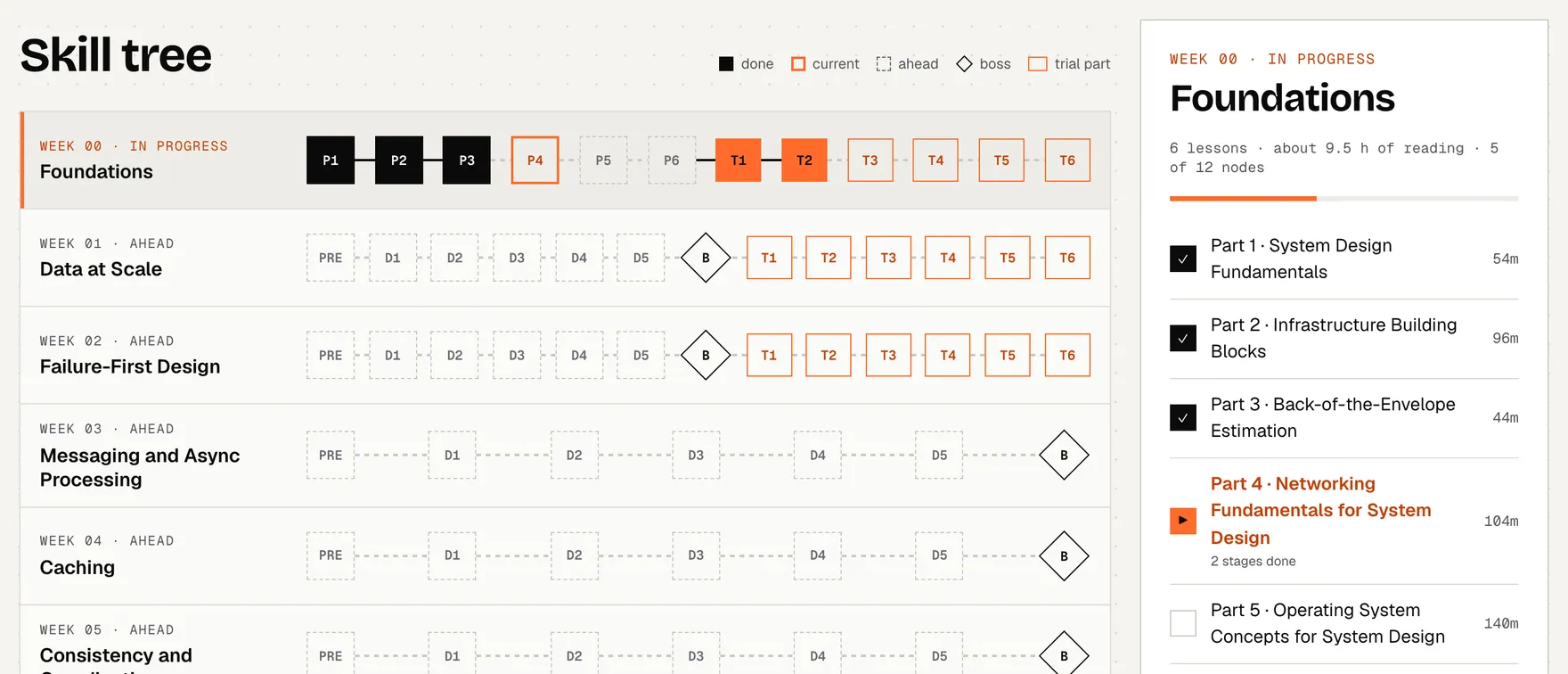
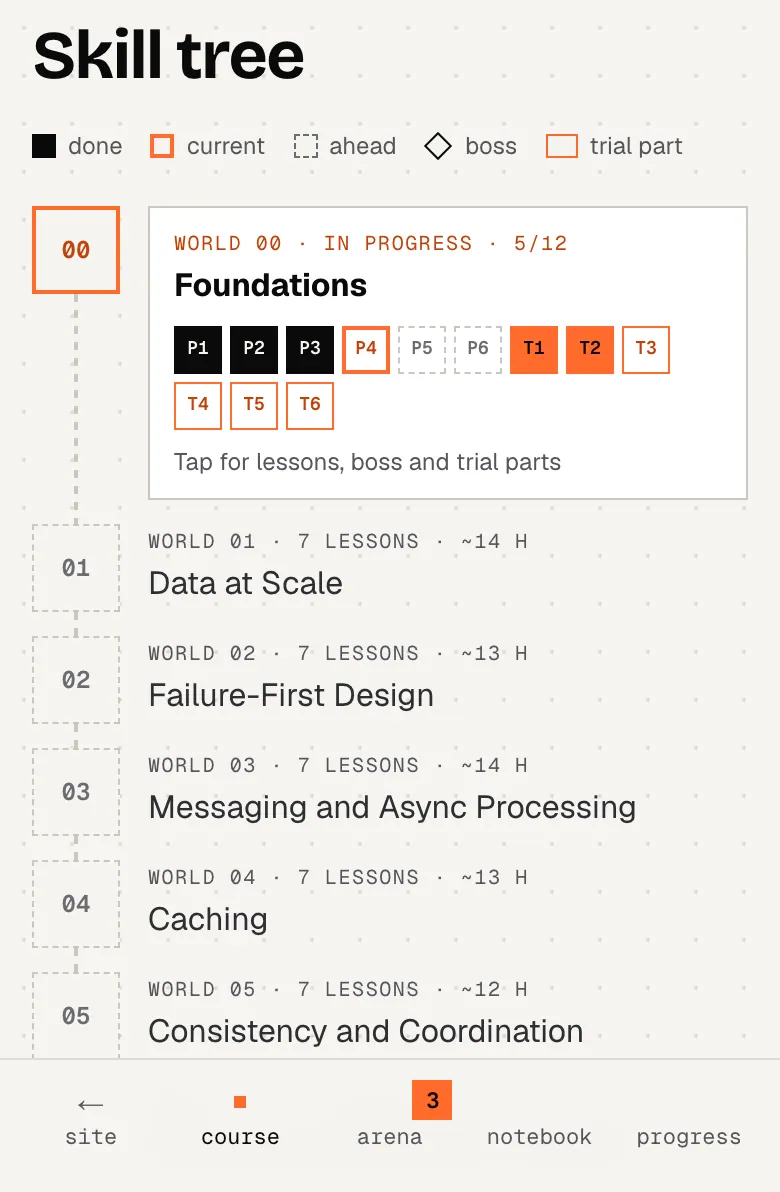
The skill tree: one row per world with a node for every lesson, a diamond for the boss and boxes for trial parts, next to the selected world's panel.
  1. A world (one week of the course)
  2. Lessons: filled = done, orange = current, dashed = ahead
  3. Trial parts (T1–T6): the week's MCQs
  4. The boss: a timed interview at the end of the week
  5. Selected world: its lessons with real minutes
himanshukukreja.in/learn/system-design-mastery
The skill tree on a phone: a list of worlds with their progress; tap one to open its lessons.
  1. Tap a world to open its lessons, boss and trial

Click a world to see its lessons with real reading times, the boss, the trial parts and the world reward: clear every lesson, the boss and every trial part of a world for +300 XP and that world's badge. On a phone, tap a world to open the same panel as a sheet.

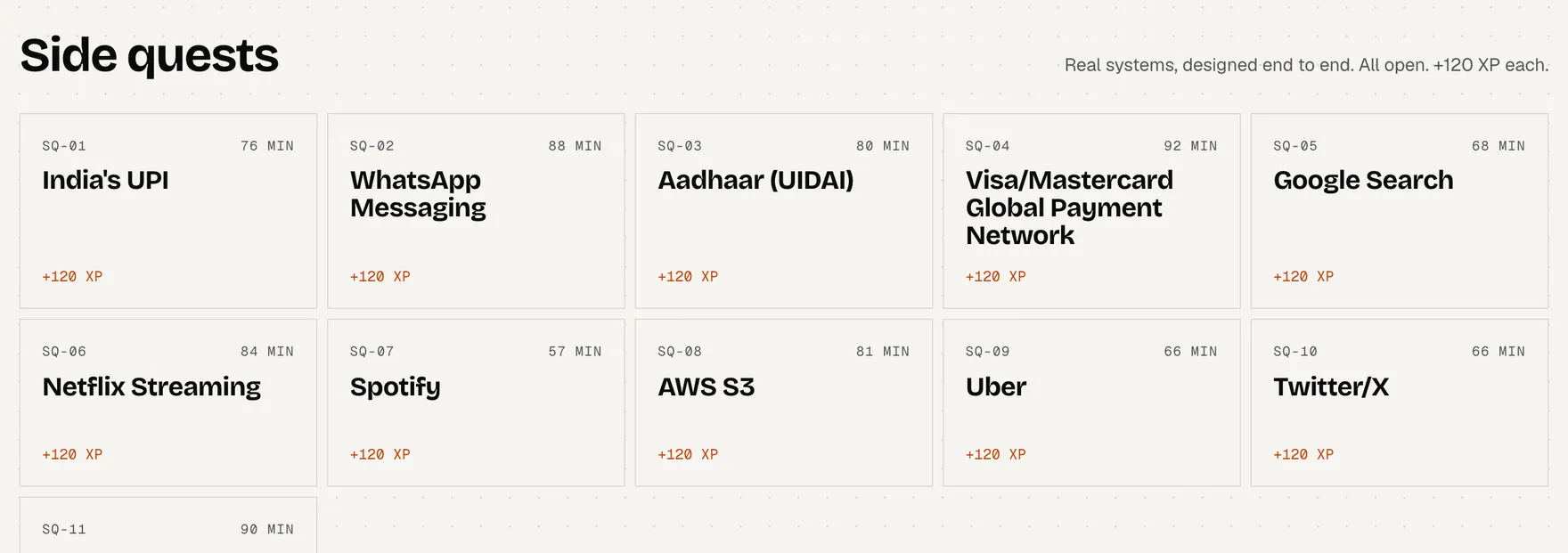
Side quests (11 of them) are real systems designed end to end: UPI, WhatsApp, Netflix, Uber and more. They are bonus problems, open any time, worth +120 XP each. The dashed card at the bottom of the hub, The Plan, is the 10-week roadmap.

himanshukukreja.in/learn/system-design-mastery
Side quests: eleven real systems (UPI, WhatsApp, Aadhaar, Netflix…) designed end to end, each worth 120 XP.
  1. Side quests: open any time, +120 XP each
Recommended order

Go world by world: Preview → Day 1 … Day 5 → each lesson's trial part right after you finish it → the boss to close the week. New to system design? Start with Week 00 Foundations. Already comfortable? Jump to any world, nothing is locked; side quests make good weekend practice once a world or two is done.

where to find itthe course tab (top of every Learn page; bottom dock on phones). The Continue card on the hub always points at your next stage.

02 · reading a lesson

The lesson screen, piece by piece.

Everything around the text is there to tell you where you are and to get out of the way while you read.

himanshukukreja.in/learn/system-design-mastery/week-00-foundations/foundations-part-4-networking
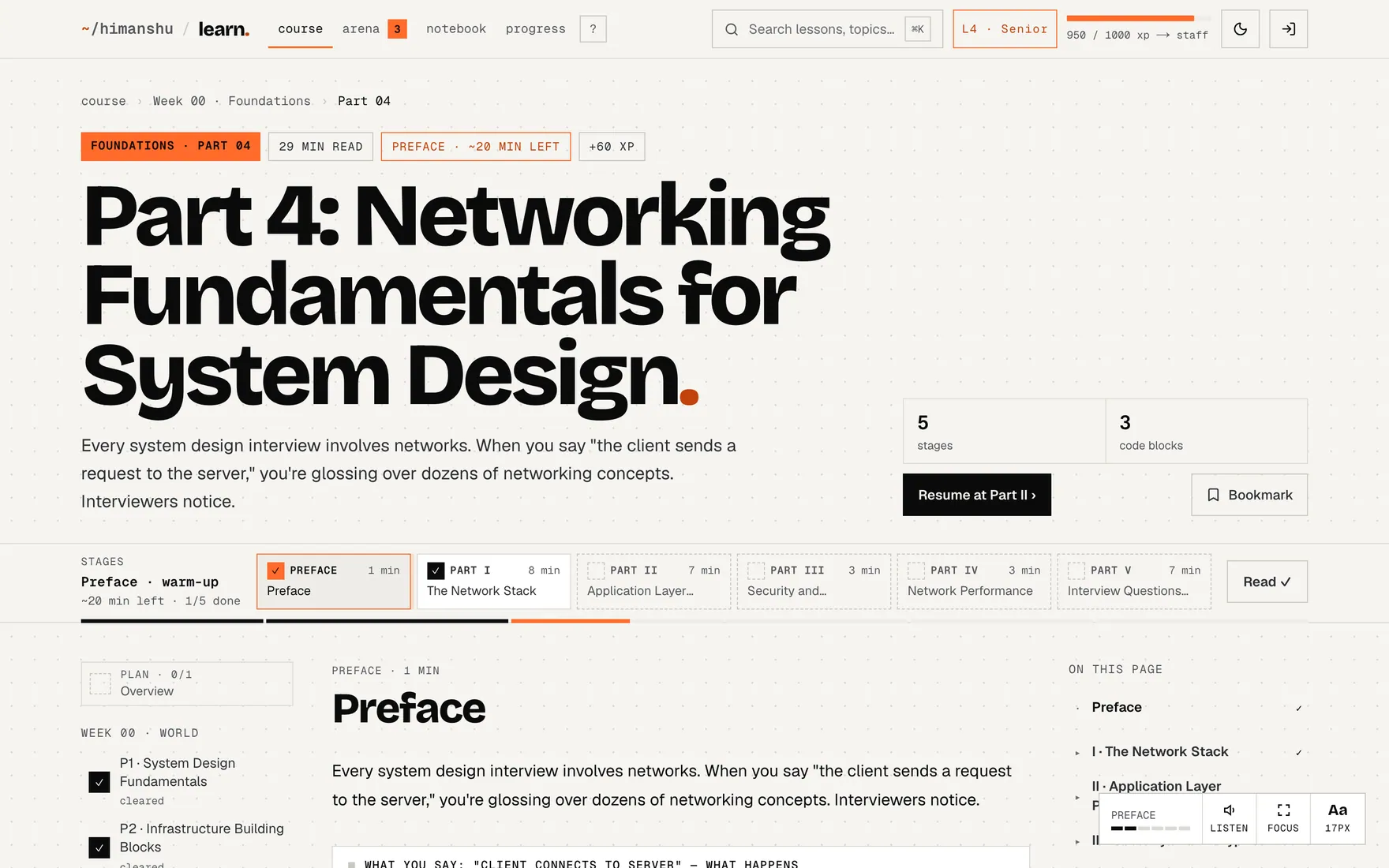
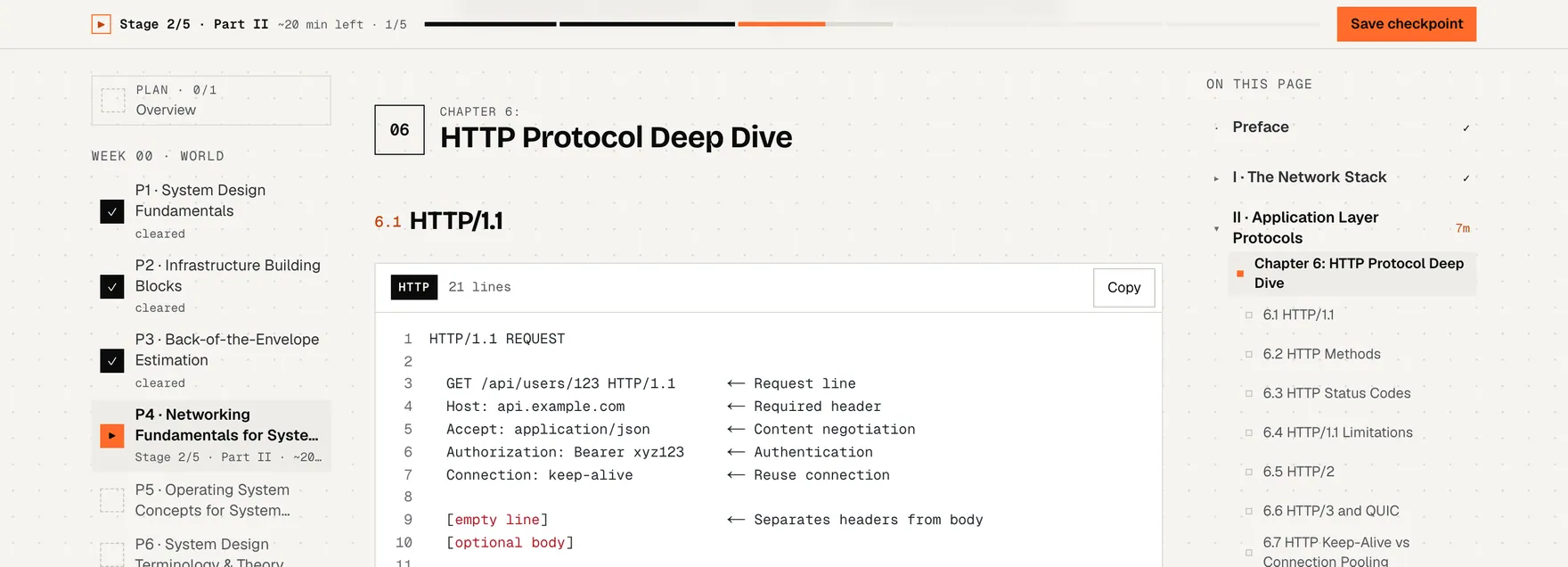
The top of a lesson: breadcrumb, chips with reading time, stage and XP, the stage rail with Save checkpoint, the week list, contents and the reading tools.
  1. Breadcrumb: course › week › lesson
  2. Reading time, where you are, and the +60 XP for finishing
  3. Stage rail: each stage with its minutes; ✓ when read
  4. Save checkpoint (reads “Read ✓” once the stage you're on is read)
  5. Resume at the stage you were reading
  6. Course path: this week's lessons, boss and trial
  7. On this page: the lesson's contents
  8. Reading tools: stage, Listen, Focus, text size
himanshukukreja.in/learn/system-design-mastery/week-00-foundations/foundations-part-4-networking
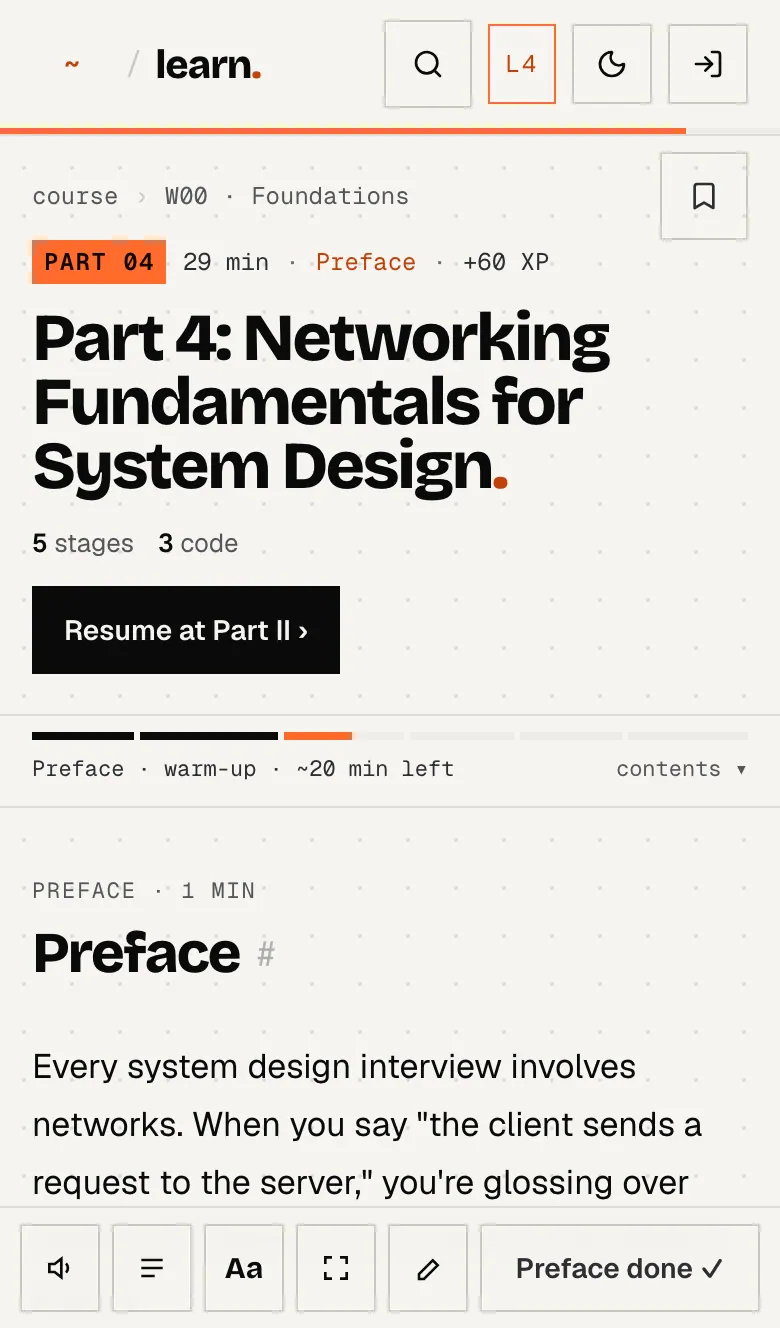
A lesson on a phone: compact header, stage strip that opens the contents, and the reading toolbar at the bottom.
  1. Lesson, time left, stage and XP in one line
  2. Stage strip: tap for the contents sheet
  3. Listen · Contents · Aa · Focus · Notebook
  4. Save checkpoint for the current stage

Header and course tabs. On every Learn page the site header turns into the course header: course · arena · notebook · progress, a search box (⌘K), your level chip and the light/dark switch. On phones the same tabs live in the dock at the bottom, with a way back to the rest of the site.

Stage rail. One card per stage with its minutes. ✓ means read, the orange outline is where you are, dashed is ahead. Optional stages (exercises, appendix, further reading, summary) sit in a separate box: they never block completion. Save checkpoint bookmarks your place (more in progress rules).

Left and right columns. The course path on the left lists this week's lessons, the boss and the trial with ticks; “On this page” on the right is the lesson's contents. On phones, tap the stage strip for the same contents as a sheet.

himanshukukreja.in/learn/system-design-mastery/week-00-foundations/foundations-part-4-networking
Reading mid-lesson: the site header has slid away and a thin stage bar stays pinned at the top with the current stage, minutes left and Save checkpoint.
  1. Where you are and how much is left
  2. Segments fill as you actually read each stage
  3. Save checkpoint

The chrome hides while you read. Scroll down and the header slides away; a thin stage bar stays pinned with the stage, minutes left and Save checkpoint. Scroll up a little and everything comes back.

Reading tools (bottom right on desktop, the bottom toolbar on phones): Listen reads the lesson aloud with your browser's voice; Focus hides everything but the article and goes full screen where the browser allows it (Esc to leave); Aa cycles the text size 17 → 19 → 21 px and remembers it. Phones also get Contents and a shortcut to the Notebook.

himanshukukreja.in/learn/system-design-mastery/week-00-foundations/foundations-part-4-networking
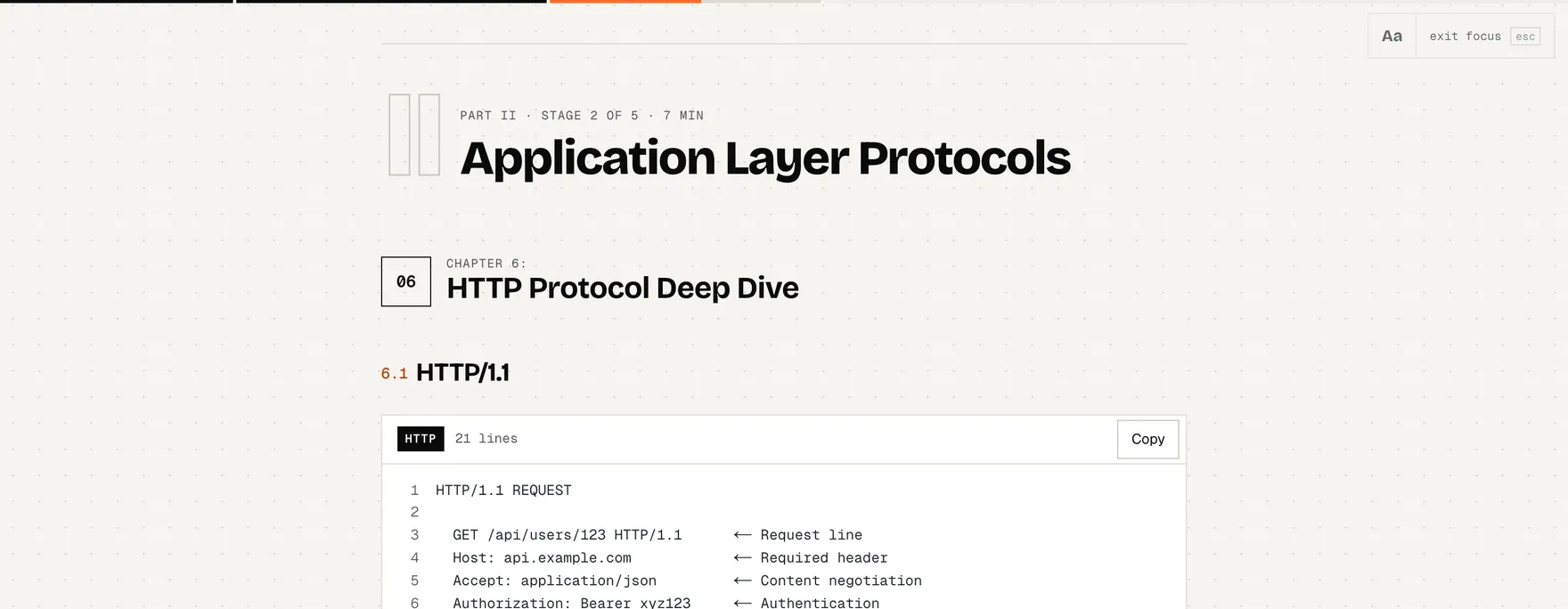
Focus mode: only the article remains, with a hairline stage bar along the top and a quiet text-size and exit control.
  1. Hairline stage progress
  2. Text size and exit (Esc)

Inside the text

himanshukukreja.in/learn/system-design-mastery/week-00-foundations/foundations-part-4-networking
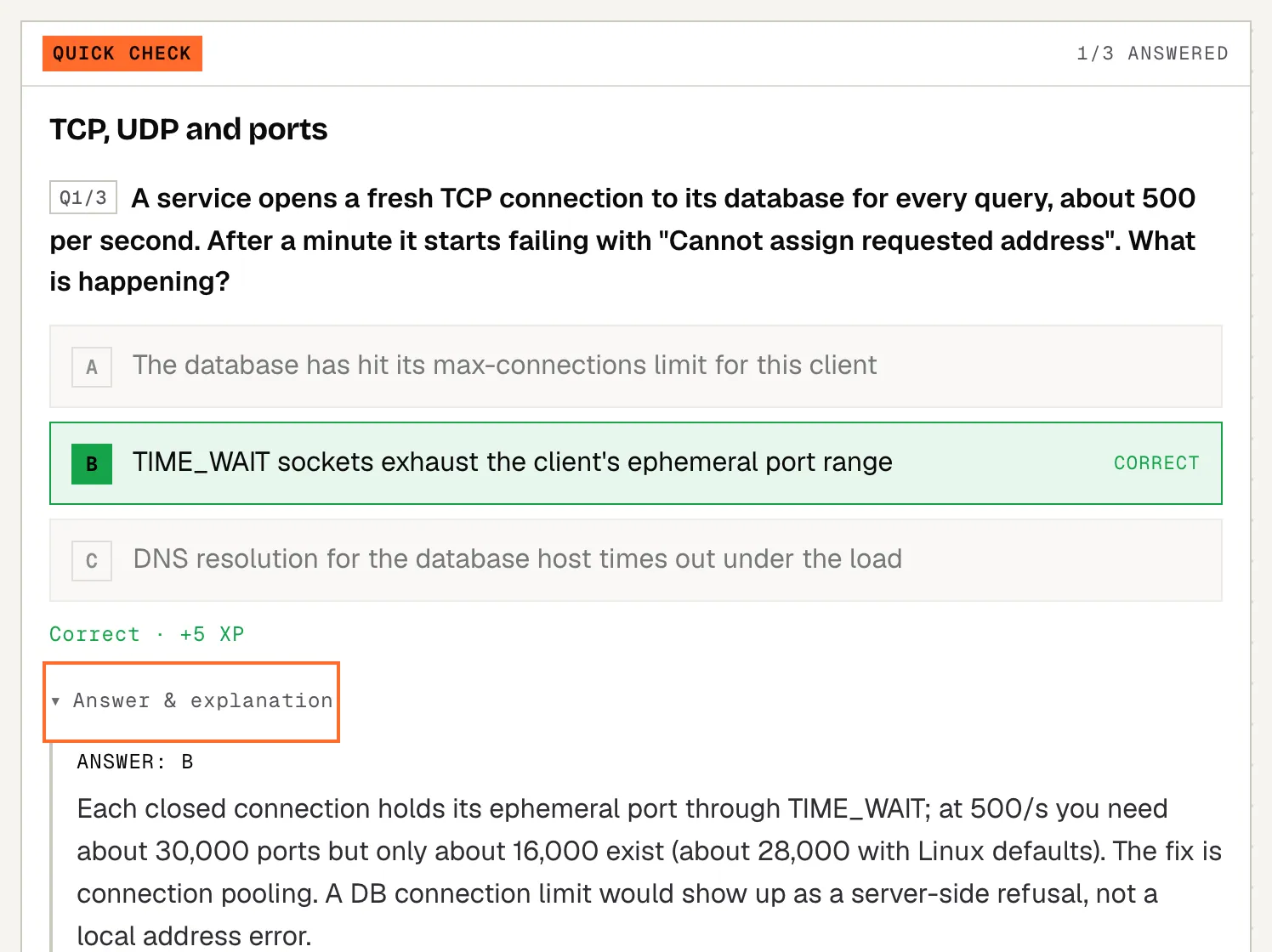
A quick check inside a lesson: the first question answered correctly with +5 XP and its explanation open.
  1. Quick check: a few questions, +5 XP each first try
  2. Your pick, the answer and why
himanshukukreja.in/learn/system-design-mastery/week-00-foundations/foundations-part-4-networking
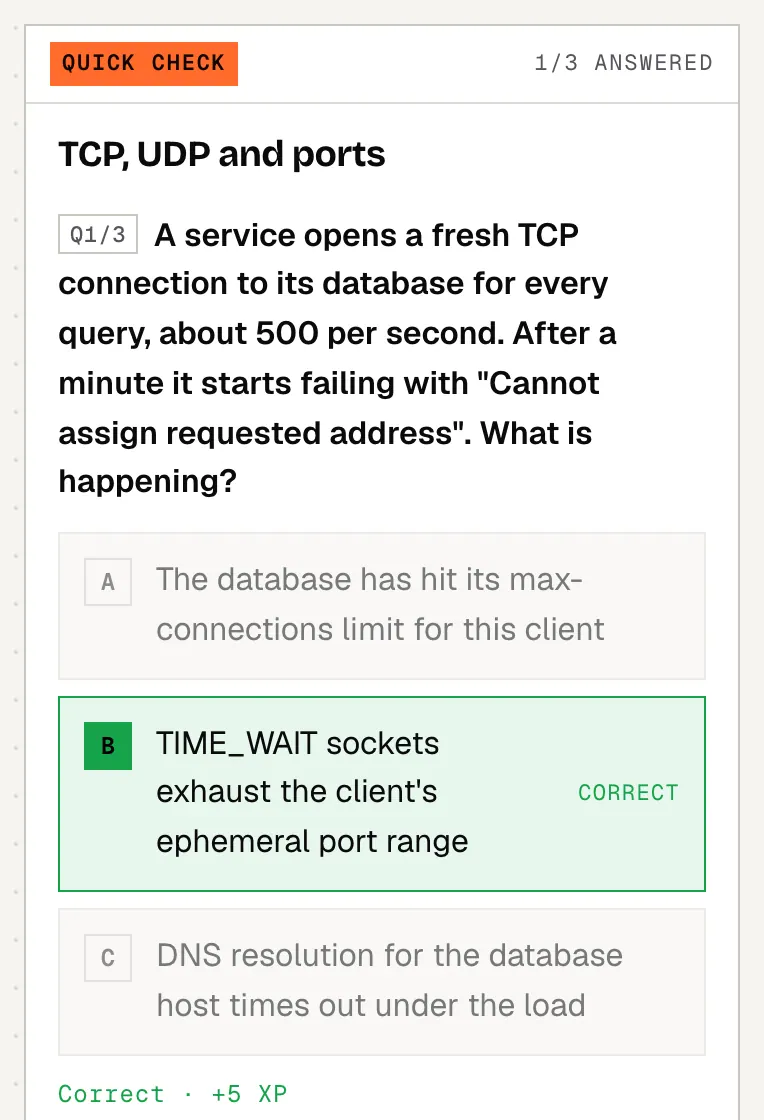
A quick check inside a lesson: the first question answered correctly with +5 XP and its explanation open.
  1. Quick check: a few questions, +5 XP each first try
  2. Your pick, the answer and why

Quick checks are short multiple-choice blocks inside lessons. Pick an answer to see whether you were right and why. A right answer on the first try is worth +5 XP; get every quick check in a stage right first time for +10 more; your first fully aced block earns the “First blood” quest (+25). Retry is always allowed but only the first try pays.

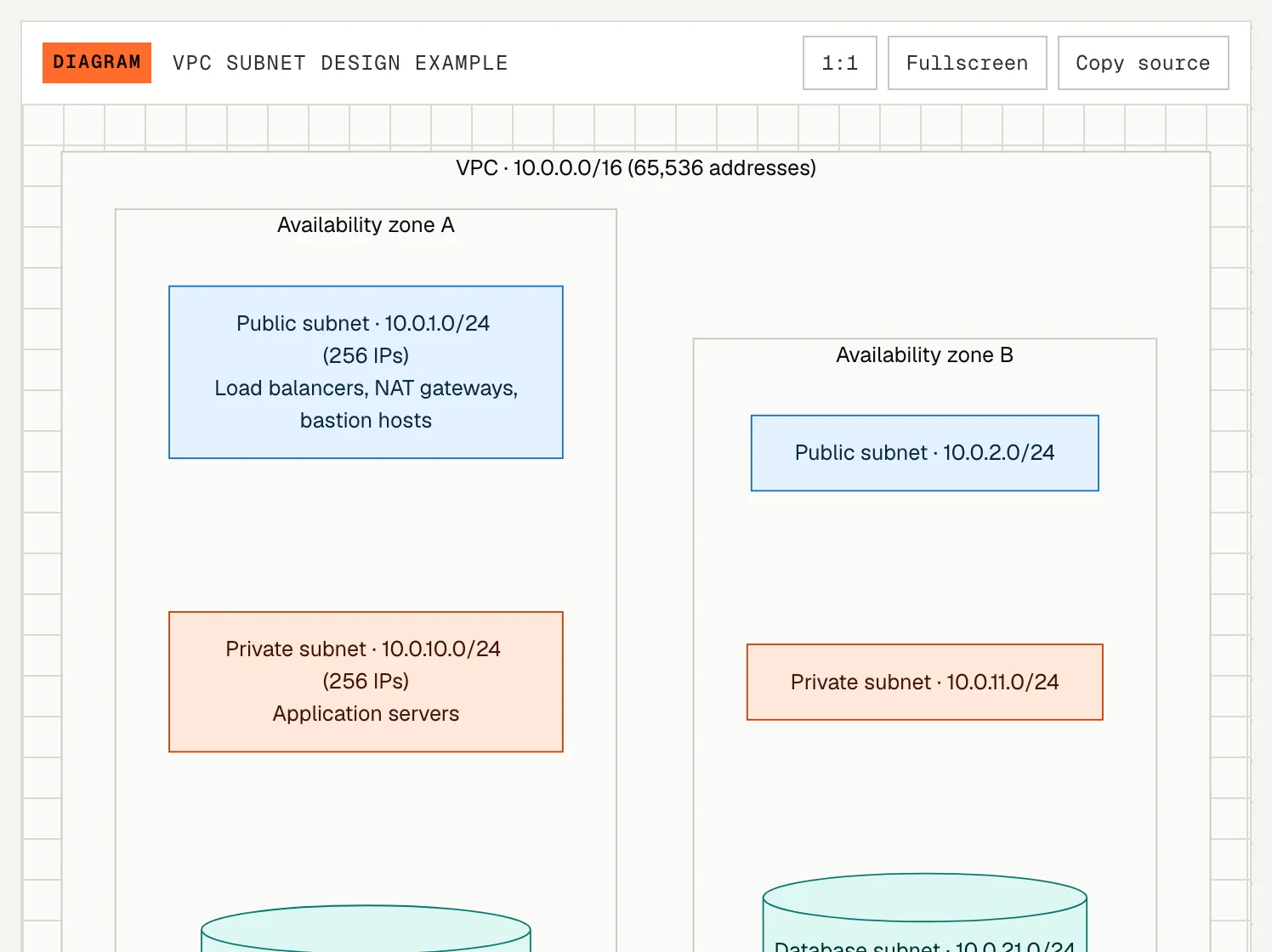
Diagrams are drawn in the site's colours and follow the light/dark theme; open any of them full screen. Code blocks have Copy and collapse long listings; interview questions have a reveal card where you can mark “knew it” or “review again”.

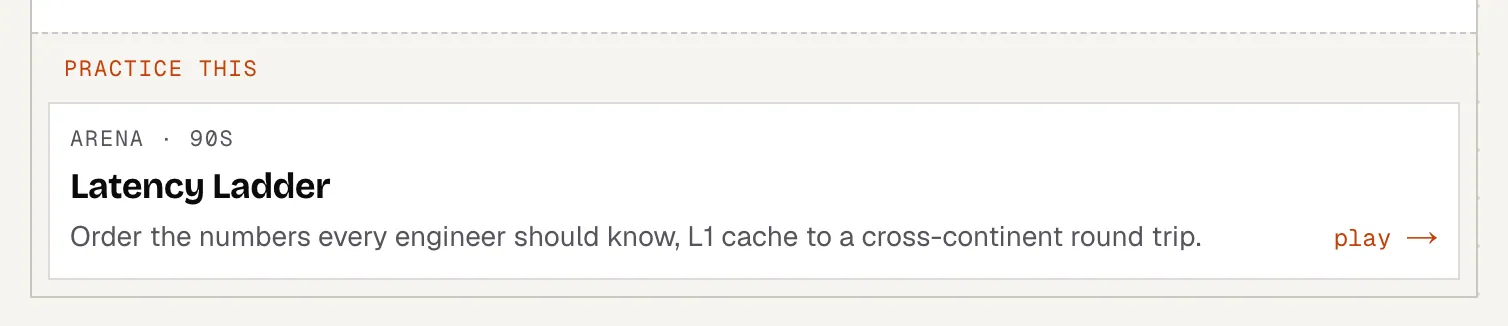
Practice this cards appear at the end of lessons that have a matching game, for example the Latency Ladder after Networking. They open an Arena game or a Playground board.

himanshukukreja.in/learn/system-design-mastery/week-00-foundations/foundations-part-4-networking
A diagram in a lesson, drawn in the site's colours, with buttons to open it full screen or copy its source.
  1. Diagrams follow the light / dark theme
  2. Open it full screen (Esc closes)
himanshukukreja.in/learn/system-design-mastery/week-00-foundations/foundations-part-4-networking
A 'Practice this' card at the end of a lesson's last quick check, linking to the Latency Ladder game in the Arena.
  1. Practice this: a game that drills what you just read
himanshukukreja.in/learn/system-design-mastery/week-00-foundations/foundations-part-4-networking
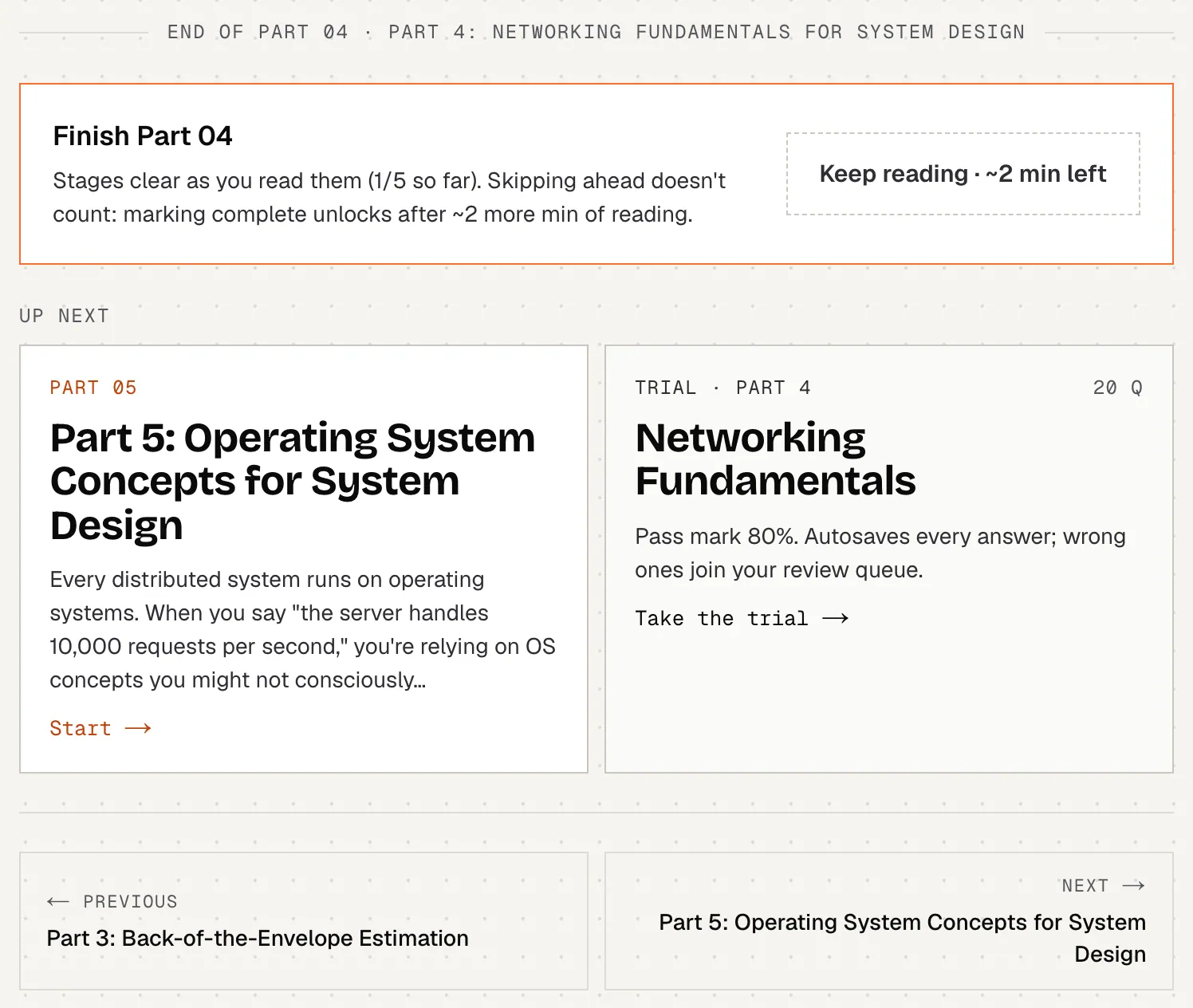
The end of a lesson: the Finish card says 'Keep reading, about N minutes left' because not enough has been read yet; below it the next lesson and the trial part.
  1. Mark complete unlocks after enough real reading
  2. Up next, across weeks
  3. The trial part that tests this lesson
himanshukukreja.in/learn/system-design-mastery/week-00-foundations/foundations-part-4-networking
The end of a lesson: the Finish card says 'Keep reading, about N minutes left' because not enough has been read yet; below it the next lesson and the trial part.
  1. Mark complete unlocks after enough real reading
  2. Up next, across weeks

where to find itany lesson from the course hub. Each lesson ends with the Finish card, what's up next (across weeks) and the trial part that tests it.

03 · progress & completion

How a lesson counts as done.

Progress is earned by actually reading, not by scrolling to the bottom. Here are the rules in plain words.

  1. 01Each stage needs some real reading timeAbout 35% of the stage's estimated minutes (never less than 20 seconds, never more than 6 minutes), spent with that stage on screen.
  2. 02…and most of the stage has to pass by your eyes80% of the stage must have been visible while you were reading. The stage bar fills as both happen.
  3. 03Only real reading seconds countThe tab is visible, you did something in the last 60 seconds (scroll, tap, key) or Listen is playing, and you aren't flicking through faster than a screen a second. Jumps (contents, links, End, PageDown) and the second right after them never count, and neither does time spent below the article.
  4. 04The lesson completes by itselfWhen every required stage is read, the lesson is complete: +10 XP for each stage along the way, +60 XP for the lesson.
  5. 05Or mark it completeThe Mark complete button at the end unlocks once you have about 70% of the lesson's total reading time in (each stage counts up to its own share). Before that it says “Keep reading · ~N min left”.
  6. 06Done stays doneCompleted never goes back to incomplete and percentages never go down. Re-reading is always safe.
Save checkpoint = a bookmark of your place

Save checkpoint remembers the stage you are on so the hub's Continue card and “Resume at …” take you back there. If you have already spent enough time in that stage, it also clears it (it trusts you on the “seen” part). Otherwise it tells you how many more minutes that stage needs. The reader also moves your resume point on its own as you read.

Where progress is saved
Guest (no account)Signed in
Lesson & stage progress, resume pointThis browser onlyYour account, on every device. Anything you read as a guest here is merged in when you first sign in
XP, quests, badgesThis browser onlyYour account (merged the same way)
Review cards, trial attemptsThis browser onlyYour account, with this browser as a backup if saving fails
Highlights, notes, bookmarksNeed an accountYour account
Weekly goalThis browser onlyYour account
Leaderboard rankLocal points only (not ranked)Ranked every week

where to find itthe stage rail and Finish card in every lesson; the Continue card on the hub; the progress tab for everything at once.

04 · highlights, notes & bookmarks

Select text, keep it in your Notebook.

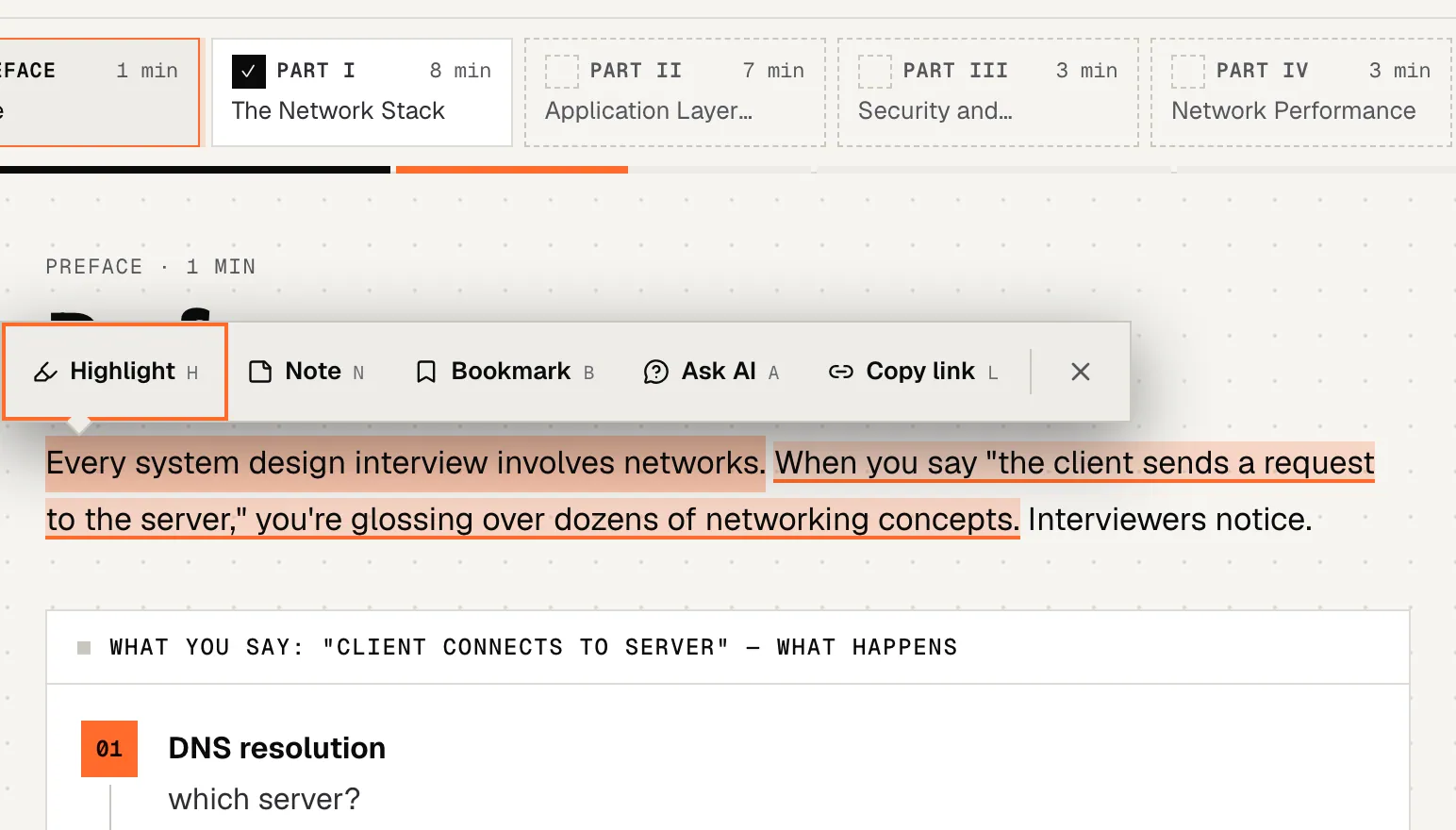
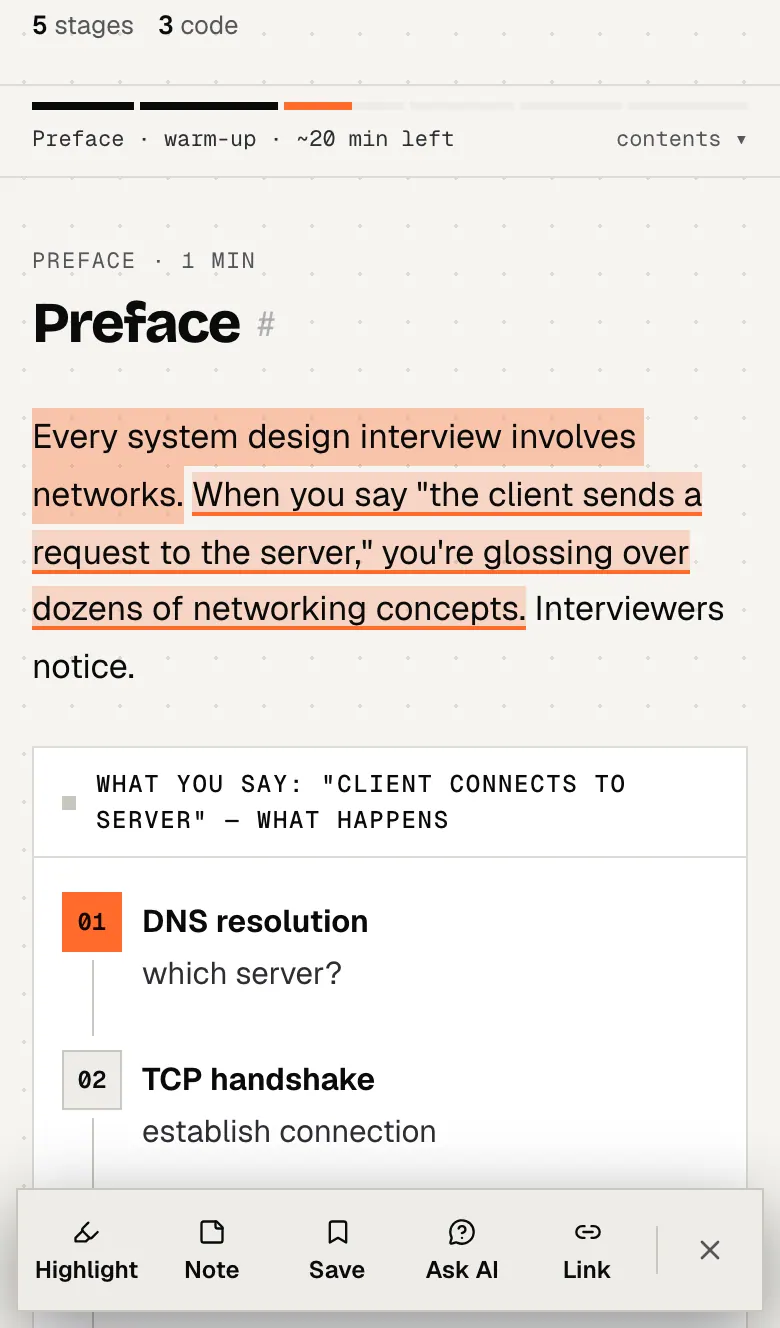
Select any sentence in a lesson (long-press on a phone) and a toolbar appears. Everything you save lands in the Notebook, grouped by lesson.

himanshukukreja.in/learn/system-design-mastery/week-00-foundations/foundations-part-4-networking
Selecting a sentence in a lesson opens a toolbar: Highlight, Note, Bookmark, Ask AI and Copy link. Saved highlights show in colour in the text around it.
  1. Highlight (pick one of four colours)
  2. Note: your words attached to the passage
  3. Bookmark this exact passage
  4. Ask AI: Claude or ChatGPT, with the context
  5. Copy link: opens the page at this line
  6. A saved highlight
himanshukukreja.in/learn/system-design-mastery/week-00-foundations/foundations-part-4-networking
On a phone, a long-press selection docks the toolbar at the bottom of the screen.
  1. Toolbar docks at the bottom on touch screens
  2. A saved highlight

Highlight it in one of four colours, each with a meaning: Key idea (orange), Definition, Numbers (grey) and Interview line (teal). Note attaches your own words to the passage. Bookmark saves the exact passage with an optional title. These three need a free account, so they follow you everywhere; as a guest the toolbar asks you to sign in.

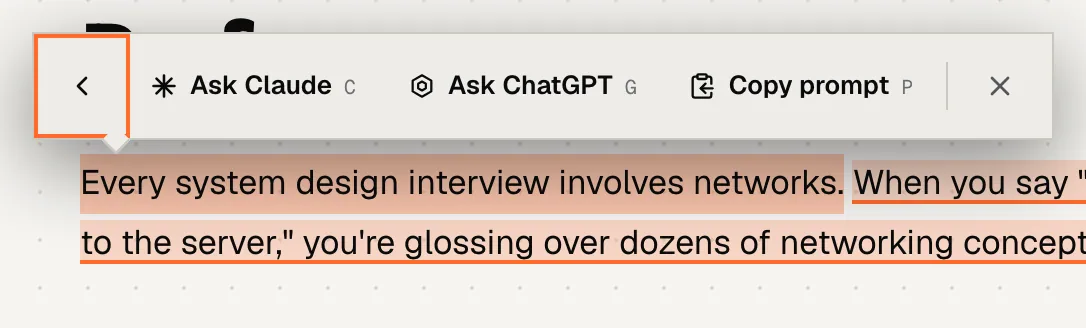
Ask AI opens Claude or ChatGPT in a new tab with the passage and its context (lesson, stage, the paragraphs around it) already written as a question; Copy prompt gives you the same text for any other assistant. Copy link makes a link that opens the page scrolled to that exact line (on phones, Link also offers your phone's Share sheet). The # next to any heading copies a link to that section.

Keyboard: select text (or Shift + arrows), then H highlight, N note, B bookmark, A Ask AI, L copy link. Shift+F10 opens the toolbar.

himanshukukreja.in/learn/system-design-mastery/week-00-foundations/foundations-part-4-networking
The Ask AI panel of the selection toolbar: Ask Claude, Ask ChatGPT and Copy prompt.
  1. Opens claude.ai / chatgpt.com with the passage and its lesson context
  2. Copy the same prompt for any AI
himanshukukreja.in/learn/notebook
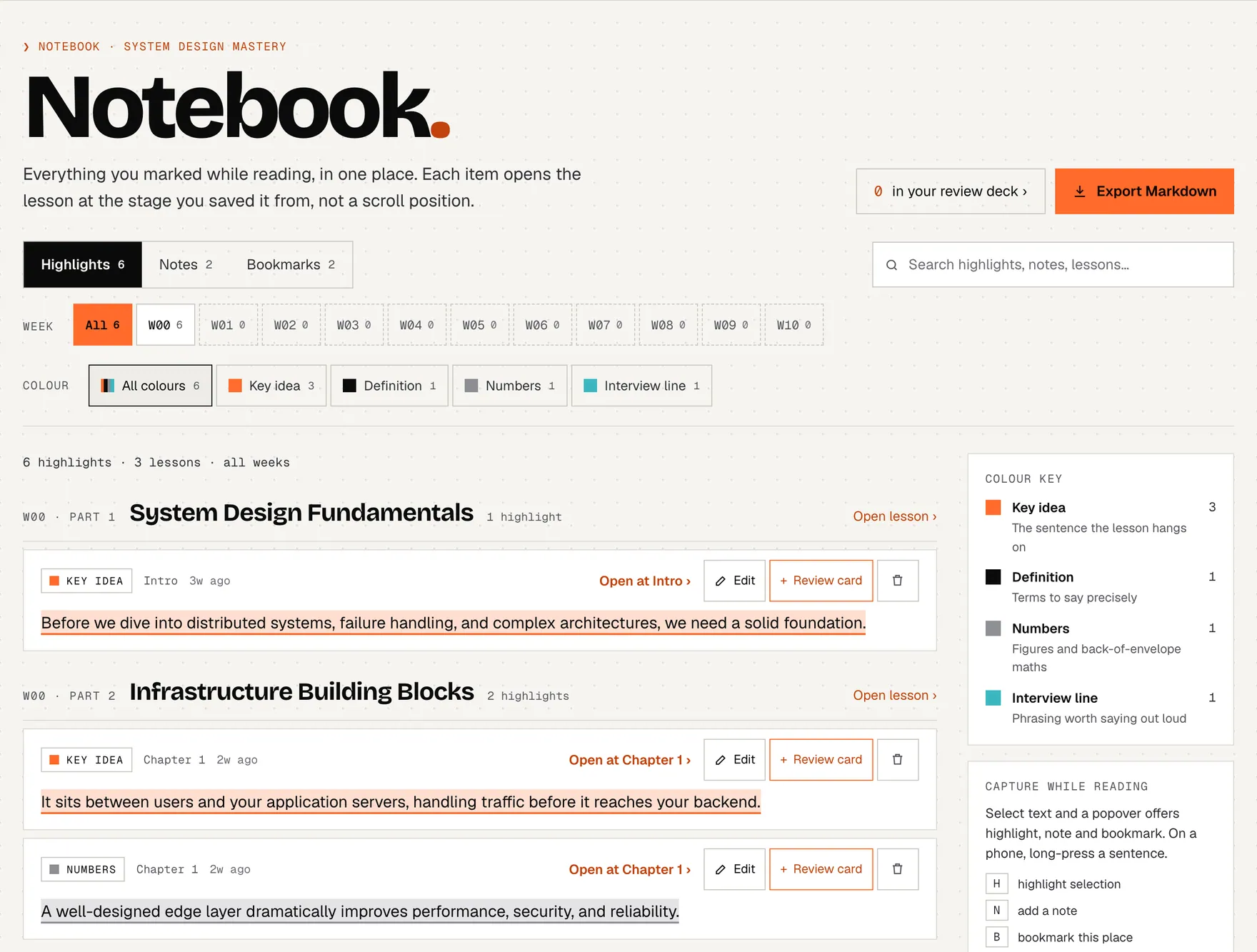
The Notebook: tabs for highlights, notes and bookmarks, search and filters, and saved passages grouped by lesson with 'Open at' links.
  1. Highlights · Notes · Bookmarks
  2. Search, filter by week and colour
  3. Grouped by lesson, in course order
  4. Open at the stage you saved it from
  5. Turn a highlight into a review card
  6. Export everything as Markdown
himanshukukreja.in/learn/notebook
The Notebook on a phone: tabs, search and highlights grouped by lesson.
  1. Highlights · Notes · Bookmarks
Shown signed in with example highlights.

The Notebook has three tabs: Highlights, Notes and Bookmarks. Search across all of them, filter by week or colour, edit or delete (with undo). Open at … takes you to the stage you saved it from. + Review card turns a highlight into a flashcard with its key phrase blanked out, which joins your daily standup. Export Markdown downloads everything.
Highlight, bookmark or checkpoint?

Highlight: a sentence worth remembering, in colour, in the text and the Notebook. Bookmark: a place you want to come back to, with a title and note, in the Notebook (the Bookmark button in a lesson's header saves the whole lesson). Save checkpoint: your reading position for progress, not a Notebook item.

where to find itthe notebook tab; the pencil button in the phone reading toolbar; the Notebook card on the progress page.

05 · review queue & daily standup

The daily standup brings back what you missed.

A few minutes a day on cards made from your own mistakes. Cards you know come back less and less often; cards you don't come back tomorrow.

himanshukukreja.in/learn/review
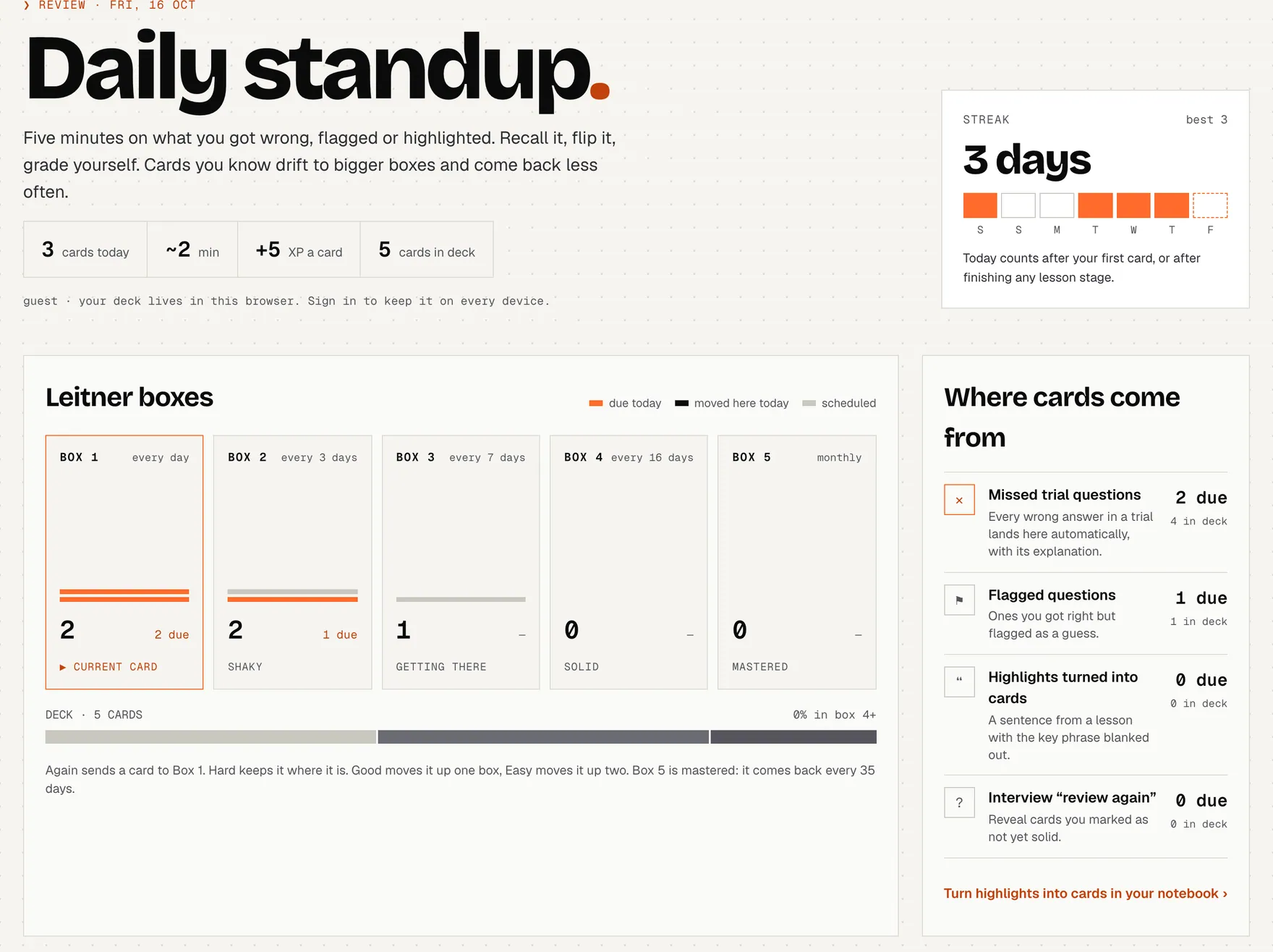
The daily standup: today's numbers, a 7-day streak strip, the five Leitner boxes with how often each comes back, and where cards come from.
  1. Cards due today and how long they take
  2. Streak: a review or a finished stage counts the day
  3. Leitner boxes: Box 1 daily → Box 5 monthly
  4. Where cards come from

Where cards come from: every question you get wrong (or skip) in a trial, right answers you flagged as a guess, and highlights you turned into cards in the Notebook. You never have to make cards by hand.

Boxes (spaced repetition). Every card sits in one of five boxes. A new card starts in Box 1. When it comes up you try to recall the answer, tap Show answer, and grade yourself:

Grades and boxes
GradeWhat happensComes back
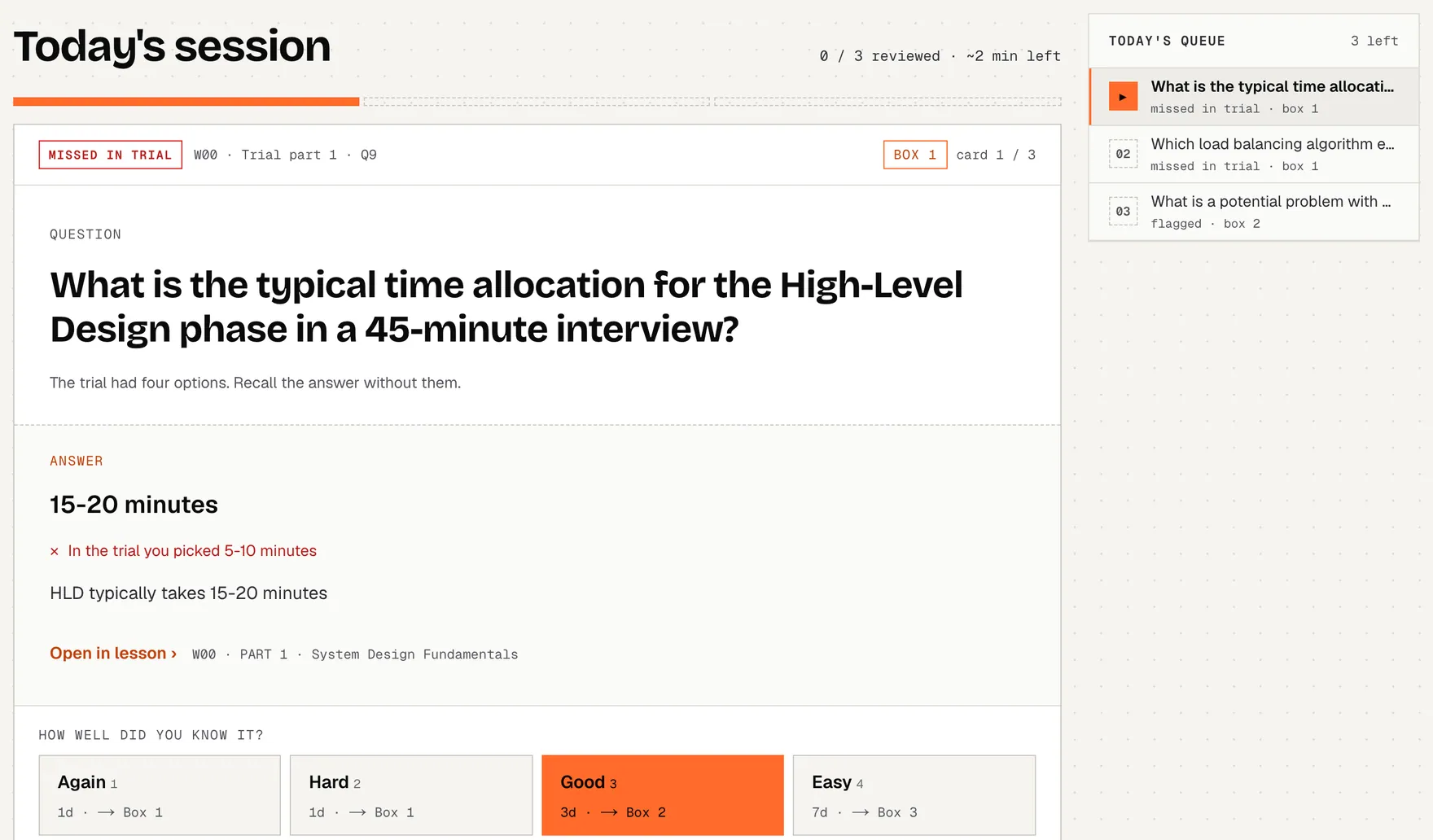
AgainBack to Box 1tomorrow
HardStays in its boxafter that box's interval
GoodUp one boxafter the next box's interval
EasyUp two boxesafter that box's interval

Intervals: Box 1 every day · Box 2 every 3 days · Box 3 every 7 days · Box 4 every 16 days · Box 5 about monthly (35 days). A card is due when its date is today or earlier, so the number on the Arena tab and the hub's standup line is simply how many cards are waiting today. Each graded card is worth +5 XP, and a review session (or a finished stage) keeps your day on the streak.

himanshukukreja.in/learn/review
A review card after 'Show answer': the question you missed in a trial, your pick, the right answer and why, and the four grade buttons that decide when it comes back.
  1. Where the card came from
  2. Again · Hard · Good · Easy: picks the next box
  3. Today's queue
himanshukukreja.in/learn/review
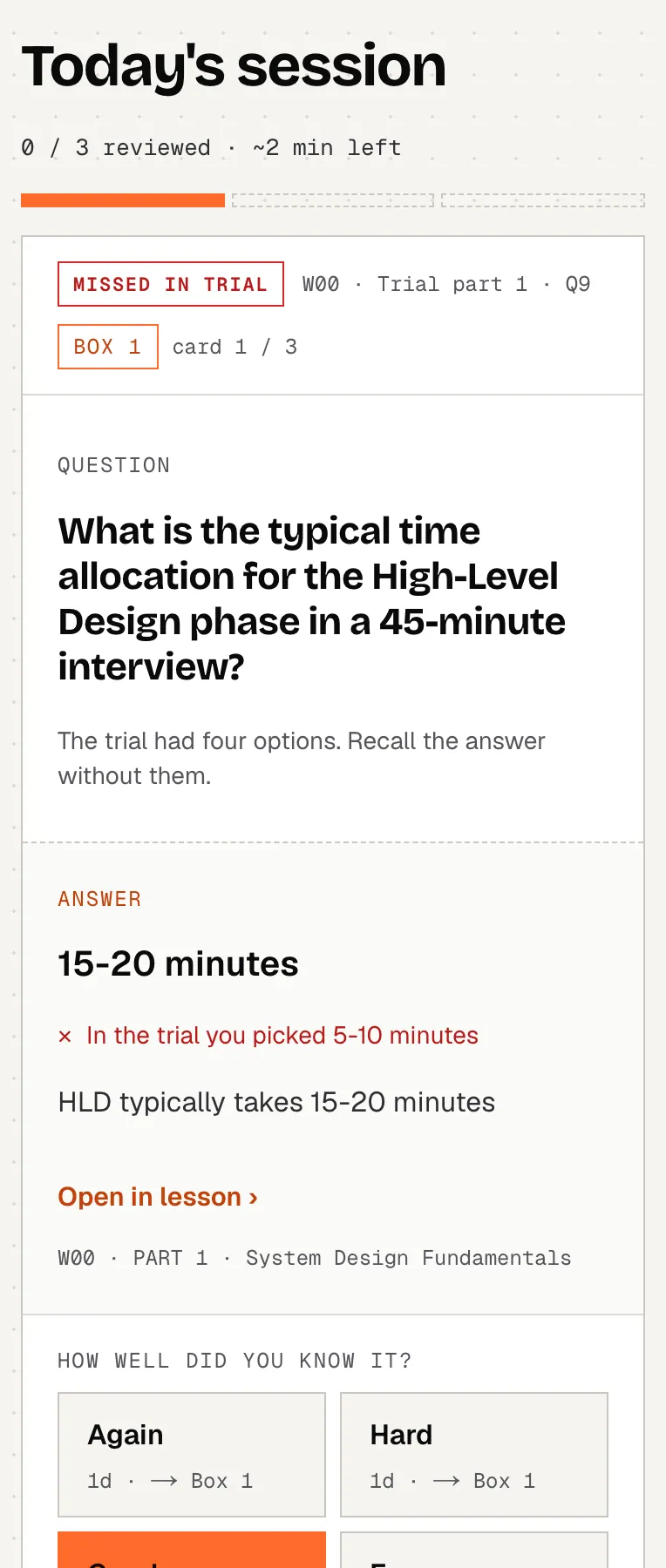
A review card after 'Show answer': the question you missed in a trial, your pick, the right answer and why, and the four grade buttons that decide when it comes back.
  1. Where the card came from
  2. Again · Hard · Good · Easy: picks the next box

where to find itthe daily standup: from the Arena tab (the orange number is cards due), the Daily standup line on the hub's Continue card, or the progress page. Keys: Space shows the answer, 1–4 grade.

06 · trials & boss fights

Prove it: trials and bosses.

Two ways a world tests you. Trials check what you remember; the boss checks whether you can design under interview pressure.

himanshukukreja.in/learn/system-design-mastery/week-00-foundations/week-00-mcq-assessment
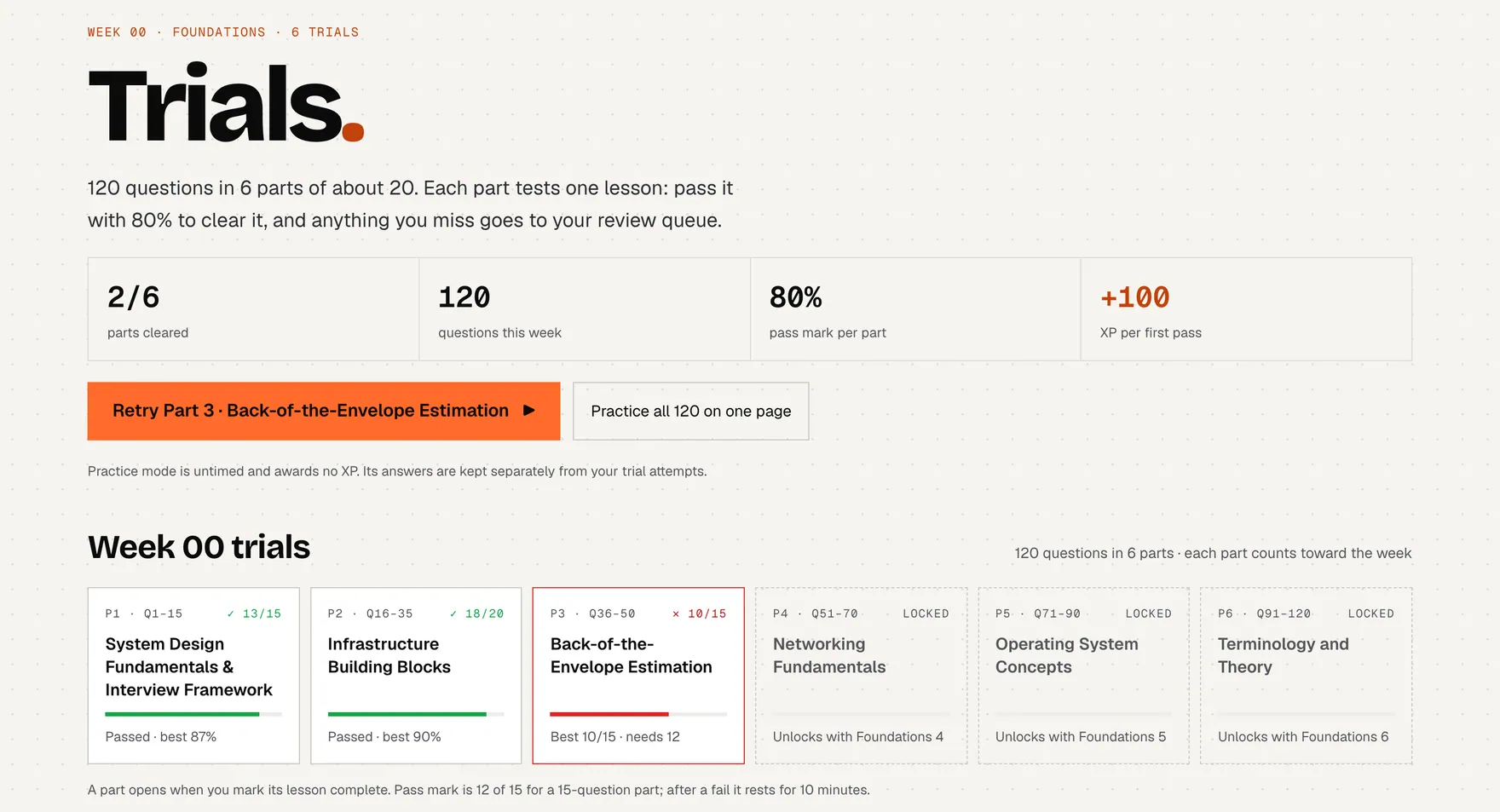
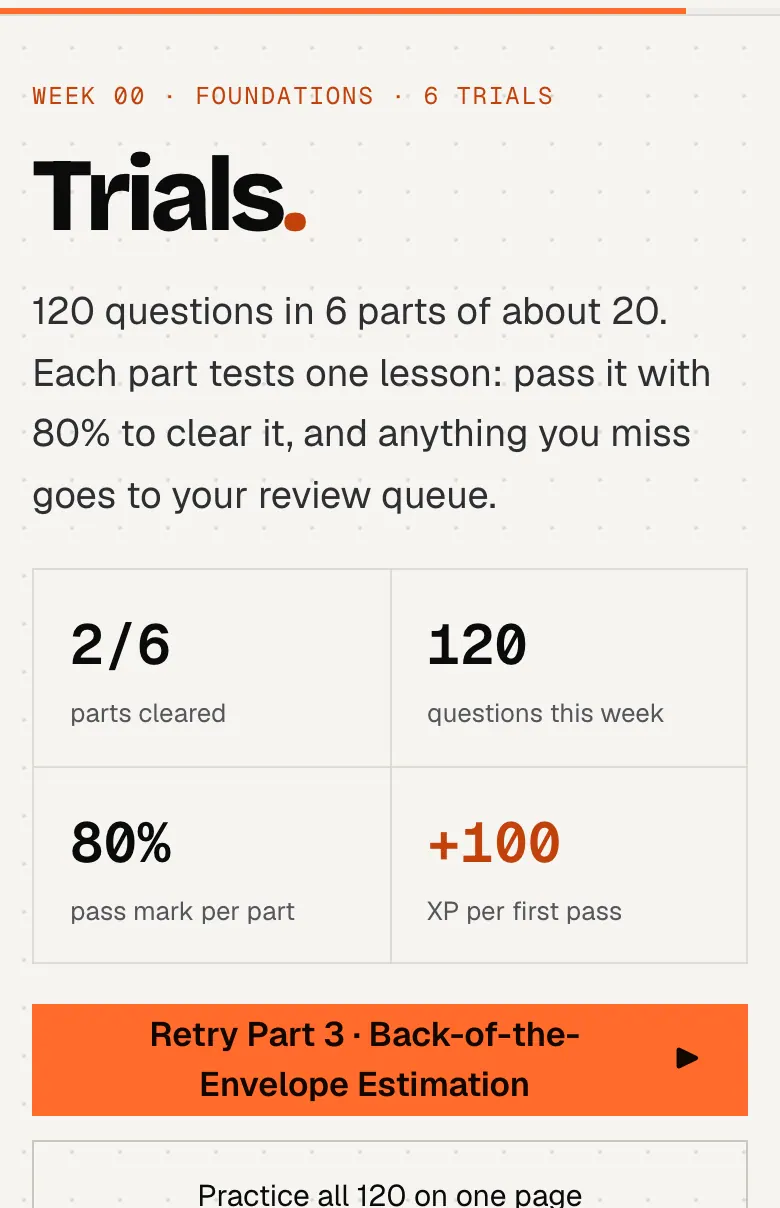
A week's trial page: parts cleared, questions this week, the 80% pass mark, +100 XP per first pass, and a strip of parts marked passed, failed, current or locked.
  1. Pass mark 80% per part · +100 XP on the first pass
  2. Start (or retry) the next part
  3. Practice all questions untimed, no XP
  4. One card per part: passed, failed, open or locked
himanshukukreja.in/learn/system-design-mastery/week-00-foundations/week-00-mcq-assessment
A week's trial page: parts cleared, questions this week, the 80% pass mark, +100 XP per first pass, and a strip of parts marked passed, failed, current or locked.
  1. Pass mark 80% per part · +100 XP on the first pass
  2. Start (or retry) the next part
  3. Practice all questions untimed, no XP

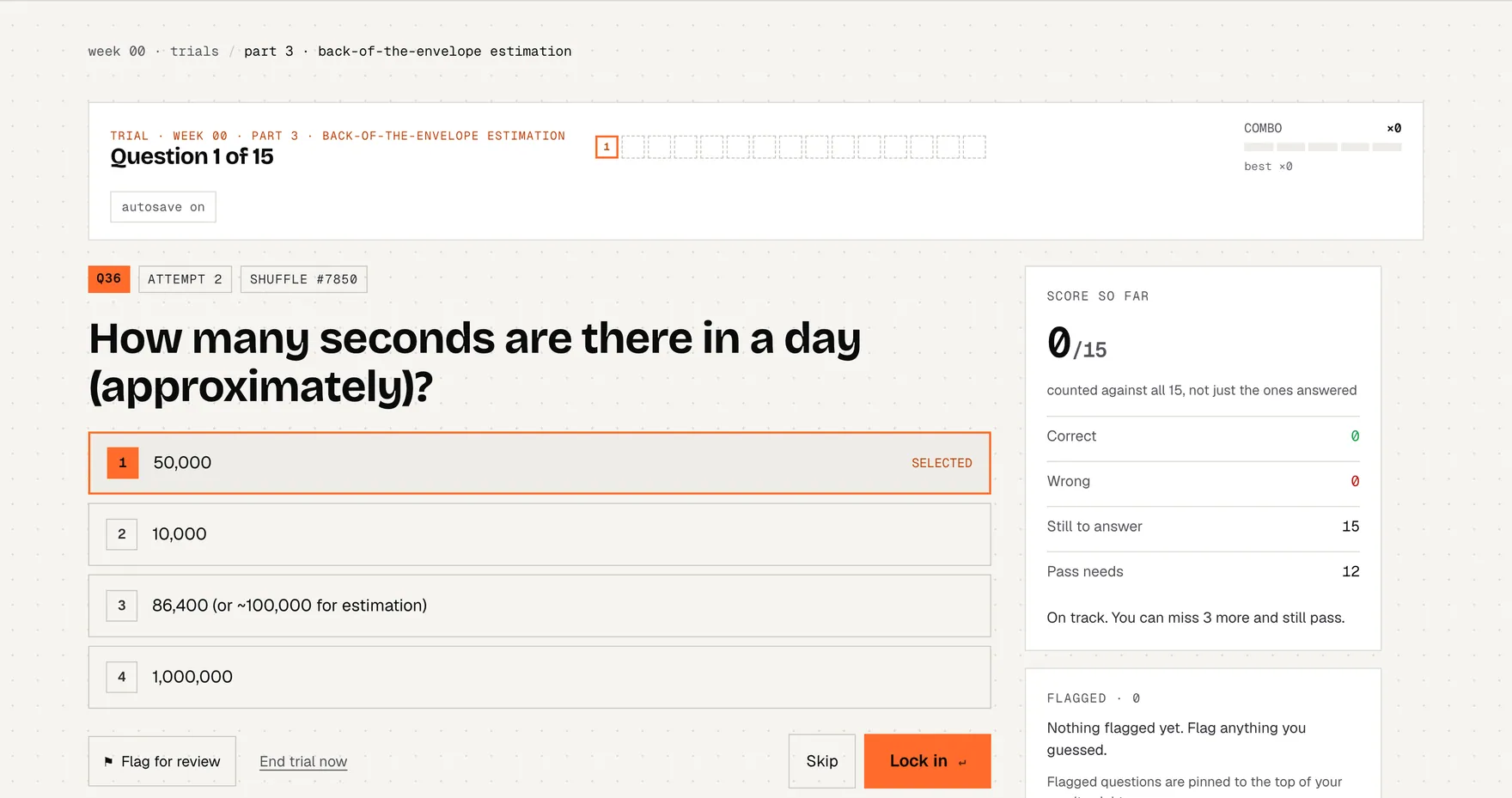
Trials are a week's multiple-choice questions, split into parts of about 15–30. Each part tests one lesson and opens when you finish that lesson (a “Locked” part still has Start anyway). Questions come one per screen, untimed: choose, then Lock in to see the answer and explanation. Your picks autosave, so a closed tab comes back to the same question.

Pass mark: 80%, rounded up (12 of 15, 16 of 20, 24 of 30). The first pass of each part is worth +100 XP. Fail and the part rests for 10 minutes, then comes back with a new option order; retakes only raise your best score. Everything you missed and every flagged answer goes to your review queue. Practice all puts every question of the week on one untimed page with no XP; its answers are kept apart from your attempts.

himanshukukreja.in/learn/system-design-mastery/week-00-foundations/week-00-mcq-assessment
A trial question: one per screen with a progress strip, a flag button, and Lock in to commit the answer.
  1. One question per screen
  2. Flag a guess: it joins your review queue
  3. Lock in to see the answer and explanation

Boss fights

himanshukukreja.in/learn/system-design-mastery/week-01-data-at-scale/capstone-interview-week-1-url-shortner-at-scale
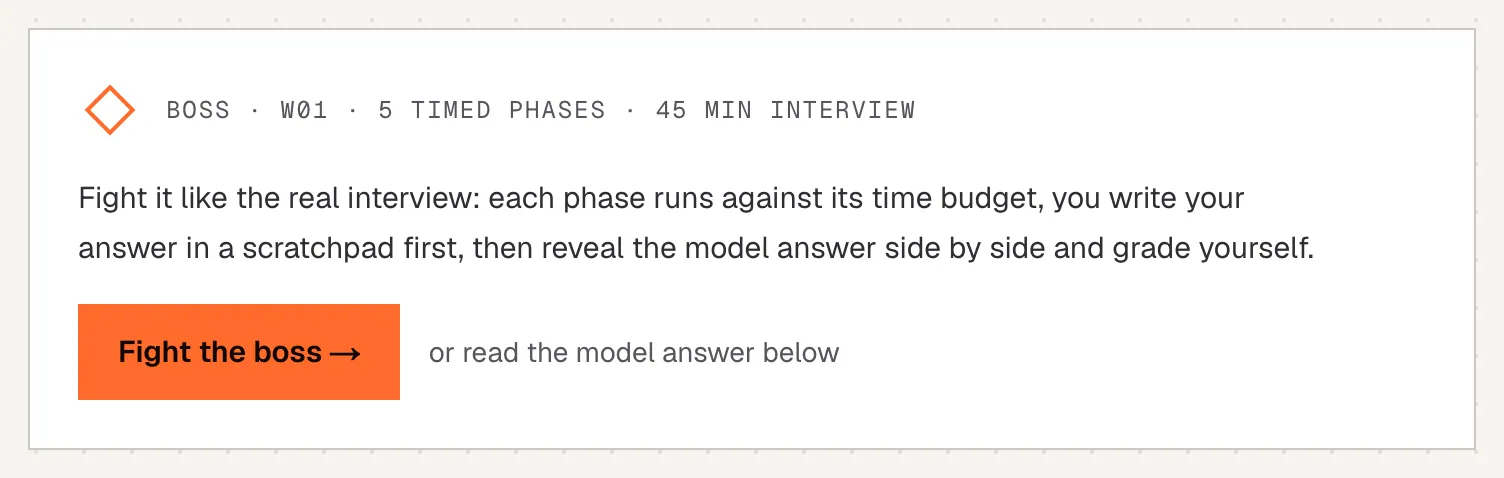
The boss card at the top of a capstone lesson: fight it as a timed interview, or just read the model answer.
  1. Fight the boss, or read the model answer

Each world ends with a boss: a full system design interview (a URL shortener at scale, a flash sale, an event-driven order system…). Fight it, or just read the model answer like any lesson.

himanshukukreja.in/learn/system-design-mastery/week-01-data-at-scale/capstone-interview-week-1-url-shortner-at-scale
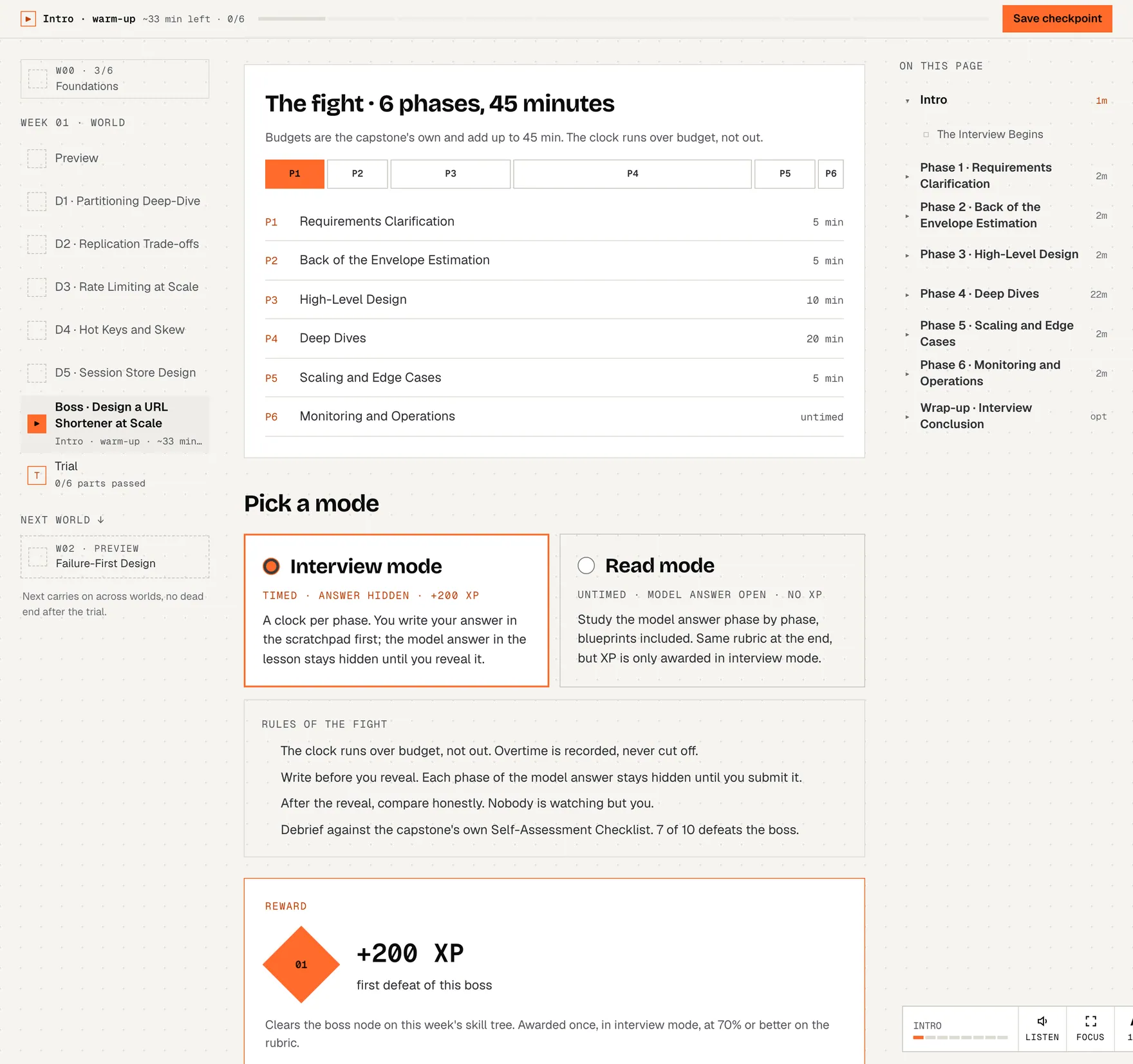
The boss briefing: the timed phases, interview mode versus read mode, the rules of the fight and the +200 XP reward for a 70% rubric score.
  1. Phases with their time budgets
  2. Interview mode: answer hidden, earns XP
  3. Read mode: model answer open, no XP
  4. +200 XP at 70% of the rubric, once

Interview mode: each phase has the capstone's own time budget (the clock runs over budget, it never cuts you off). You write your answer in a scratchpad first; the model answer stays hidden until you reveal it. At the end you grade yourself against the capstone's checklist: 70% defeats the boss for +200 XP, once. Read mode is untimed with the answer open and gives no boss XP. Reading the capstone to the end still completes it as a lesson (+60 XP) and marks the boss node done on the tree.

where to find itthe T boxes and the diamond on each world row of the skill tree; the trial card at the end of each lesson; the “Fight the boss” card at the top of each capstone.

07 · the arena

Daily challenge, leagues and games.

The fun part of the course, built from the same questions and lessons. Two minutes a day keeps a streak alive.

himanshukukreja.in/learn/arena
The Arena: your level, daily streak, weekly points and league; today's daily challenge; your league's top five this week; and the review queue.
  1. Level · daily streak · this week's points · league
  2. Today's daily challenge
  3. Your league this week, promotion zone marked
  4. Review queue · daily standup
himanshukukreja.in/learn/arena
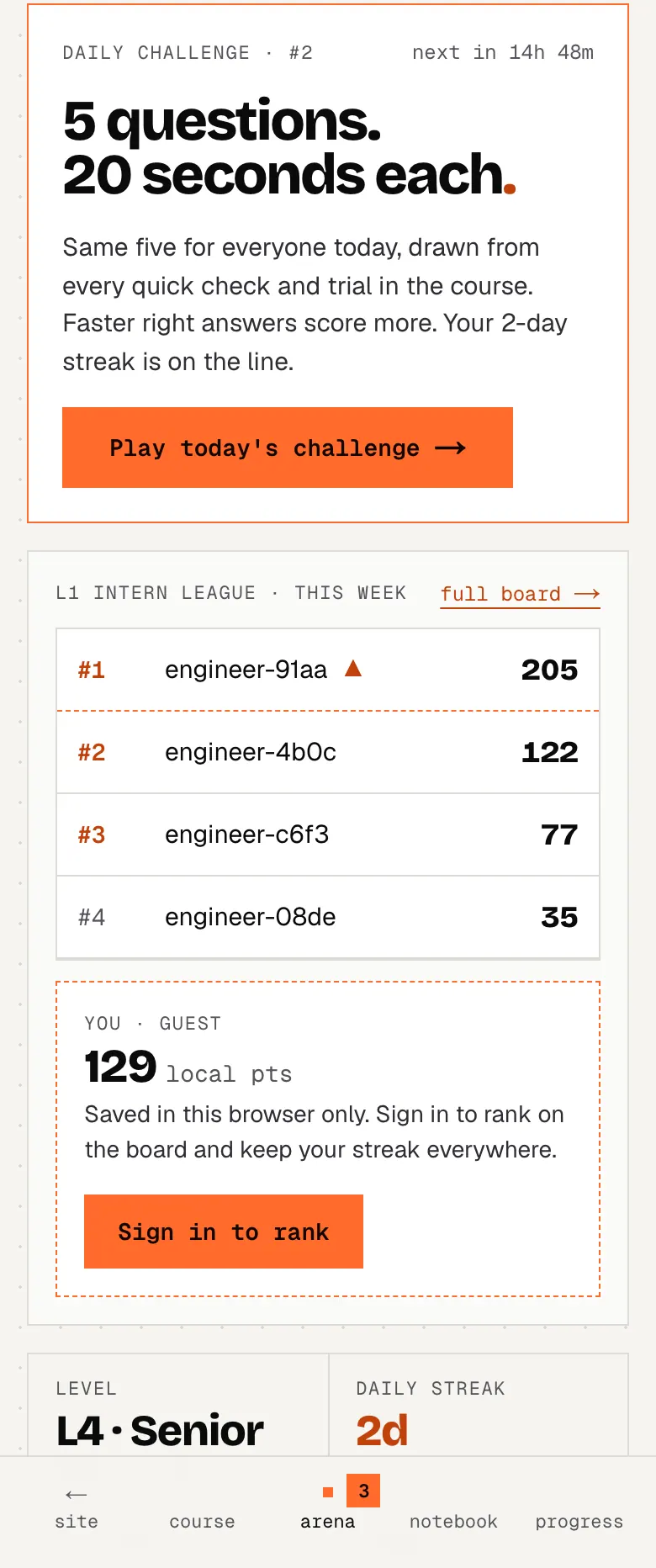
The Arena on a phone: today's daily challenge and your league.
  1. Today's daily challenge
  2. Your league this week

Daily challenge

himanshukukreja.in/learn/arena/daily
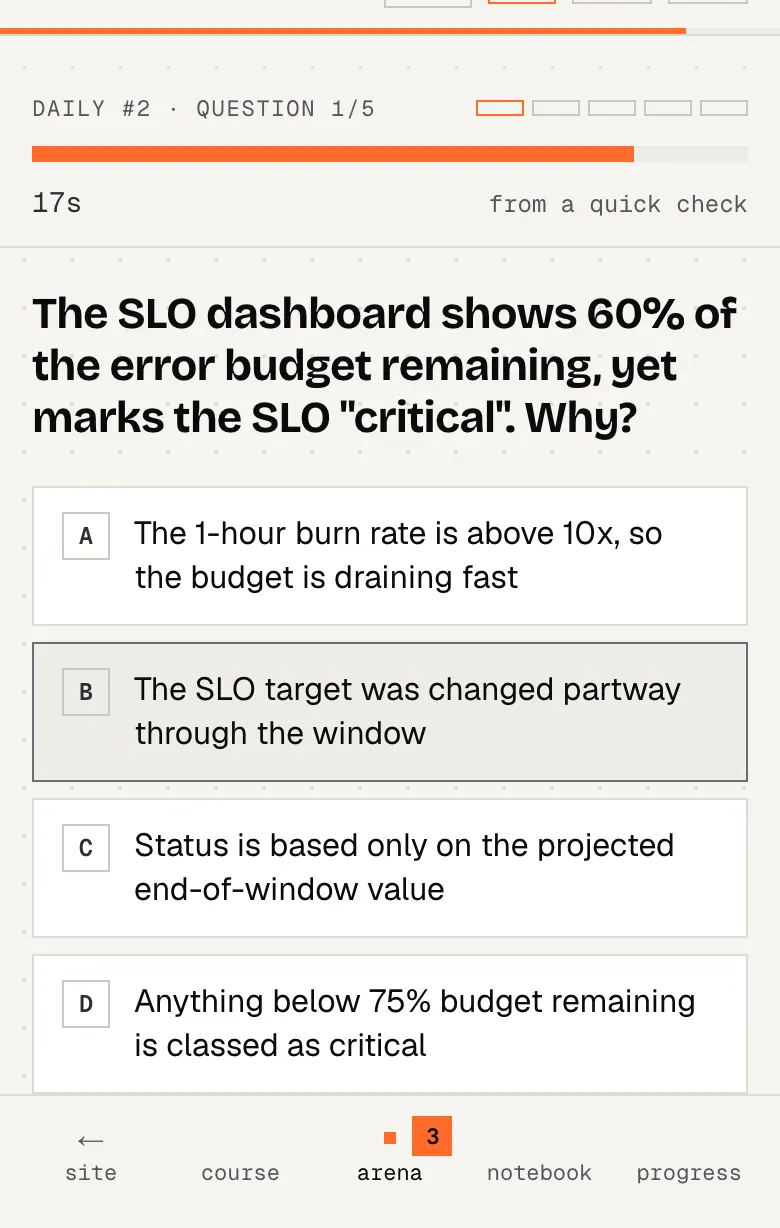
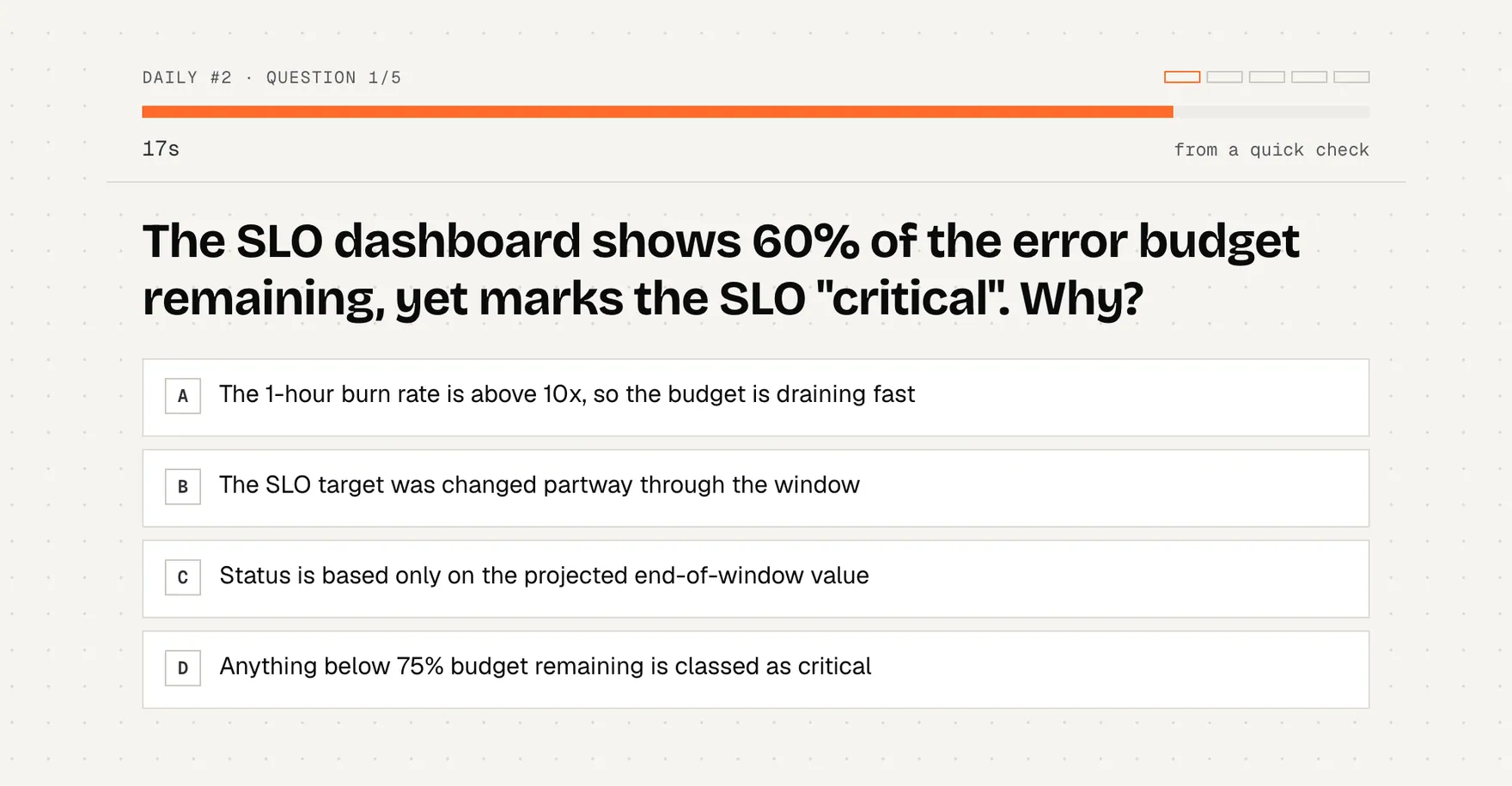
The daily challenge running: question 1 of 5 with a 20-second timer bar and four options.
  1. 5 questions, the same for everyone today
  2. 20 seconds each; faster right answers score more
  3. Pick an answer (keys A–D or 1–4)
himanshukukreja.in/learn/arena/daily
The daily challenge running: question 1 of 5 with a 20-second timer bar and four options.
  1. 5 questions, the same for everyone today
  2. 20 seconds each; faster right answers score more
  3. Pick an answer (keys A–D or 1–4)

5 questions, 20 seconds each, the same five for everyone that day, drawn from every quick check and trial in the course. It rolls over at 00:00 IST. Run out of time and it counts as a miss.

Your game score is 100 per right answer plus 5 for every second left. Only the first run of the day counts: replays are practice. The first run pays +5 XP per right answer and +10 for 5/5, plus quests (first daily +30, a perfect 5/5 +50, 3-day streak +40, 7-day streak +100). Share your result as a little grid of squares.

Leagues and the leaderboard

himanshukukreja.in/learn/arena/leaderboardexample data
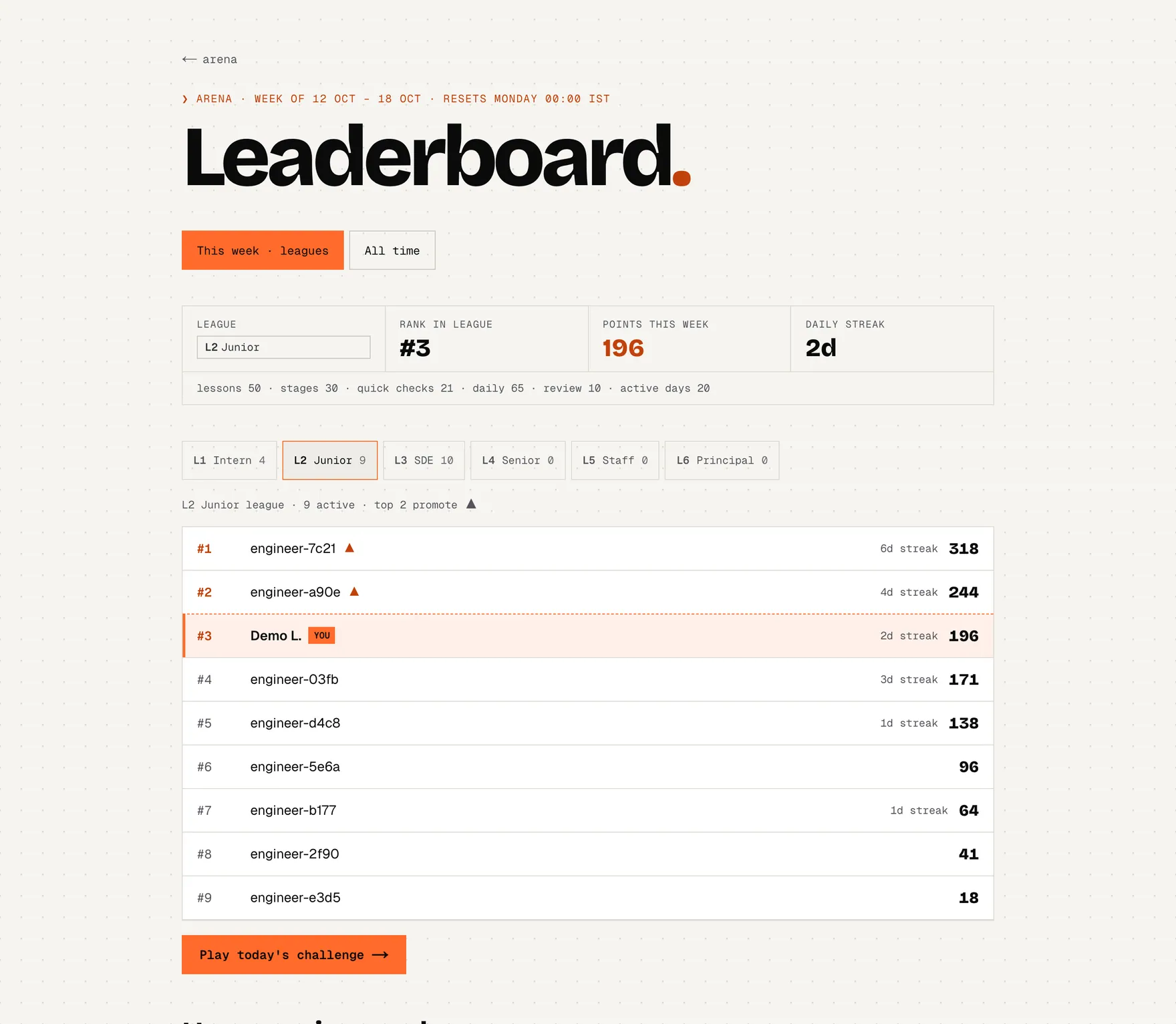
The weekly leaderboard (example data): your rank, points and breakdown, league tabs L1 Intern to L6 Principal, and the ranked list with the promotion zone.
  1. This week or all time
  2. Your points, rank and where they came from
  3. Leagues follow the levels: L1 Intern → L6 Principal
  4. Promotion zone: the top 20% move up on Monday

Signed-in learners are ranked every week by leaderboard points. Everyone starts in the L1 Intern league. When the week ends (Monday 00:00 IST), the top 20% of each league's active players (at least one, and only with 60+ points) move up a league; a week with zero points drops you one league. Reaching the top 10 of the whole board in a week earns the Top 10 quest (+100 XP).

Leaderboard points
ActionPointsRule
Lesson completed+50once per lesson
Stage cleared+5once per stage, up to 12 a lesson
Quick check, first try right+3once per question, up to 10 a lesson; answer re-checked on the server
Daily challenge+8 eachper correct answer (re-checked), +10 for 5/5, up to +10 for speed; first run of the day only
Trial part passed+40once per week and part
Review session+10once a day
Active day+5a day with course activity on your streak
Daily cap400most points one day can add, whatever you do

One daily challenge is worth at most 60 points (5 × 8 + 10 + 10). Points are re-checked on the server against the course, duplicates are dropped, and guests see an estimate of “local points” instead of a rank.

Quick games

himanshukukreja.in/learn/arena
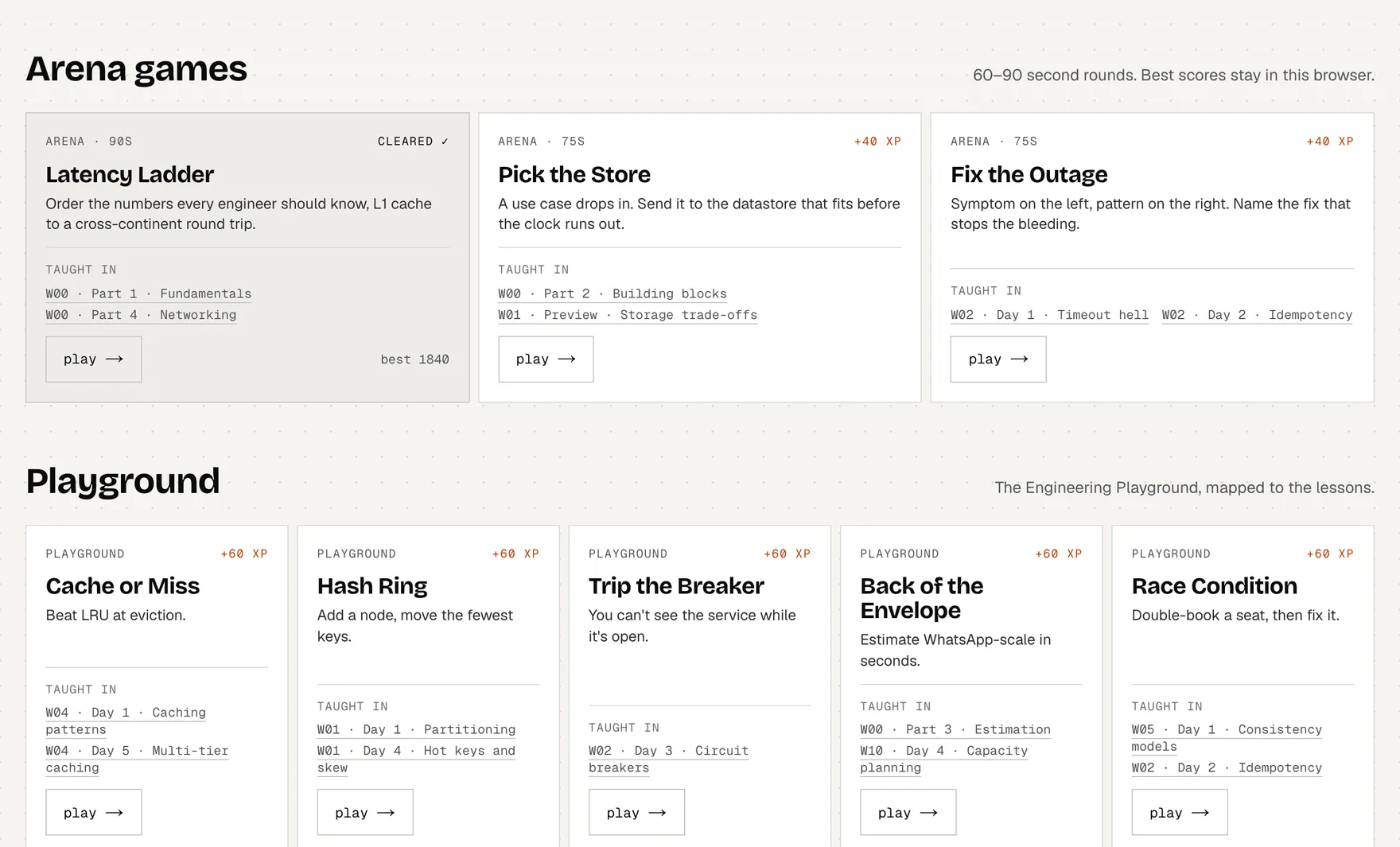
Arena games (60–90 second rounds) and the Engineering Playground, each tied to the lessons that teach it.
  1. Arena games: 60–90 s rounds, +40 XP on first clear
  2. Taught in: the lessons behind each game
  3. Playground boards, +60 XP each

Arena games are 60–90 second rounds: Latency Ladder, Pick the Store, Fix the Outage (+40 XP each on the first clear). The Playground boards (Cache or Miss, Hash Ring, Trip the Breaker, Back of the Envelope, Race Condition, Incident Commander) are longer simulations (+60 XP each). Every card lists the lessons that teach it, and best scores stay in your browser.

where to find itthe arena tab; the leaderboard (“full board”); the daily challenge.

08 · xp, levels, quests & badges

What earns XP.

XP is your running total. Every amount below comes straight from the code; each one-time reward is paid once, however often you repeat the thing.

How XP is earned
ActionXPHow often
Read a stage+10once per stage
Finish a lesson+60once per lesson
Quick check right on the first try+5once per question
Every quick check in a stage right first try+10once per stage
Pass a trial part+100first pass of each part
Defeat a boss (interview mode, 70%+)+200once per boss
Clear a world (lessons + boss + trial parts)+300once per world, with its badge
Finish a side quest+120once (60 for the lesson + 60 bonus)
Grade a review card+5every card, every day
Daily challenge+5 / rightfirst run of the day, +10 for 5/5
Arena game / Playground board+40 / +60first clear of each
Case file: solve its activity+25once per case
Case file: right call on its debrief question+50once per case that has one
Levels
LevelFromUnlocks
L1 · Intern0 XPEverything is open. Nothing is gated.
L2 · Junior100 XPThe terminal learns more commands.
L3 · SDE300 XPBlueprint skin and hidden post-mortem notes.
L4 · Senior600 XPDirector's cut notes on every case file.
L5 · Staff1,000 XPYour handle on the Hall of Fame.
L6 · Principal1,500 XPYou beat the portfolio.
himanshukukreja.in/learn/system-design-mastery
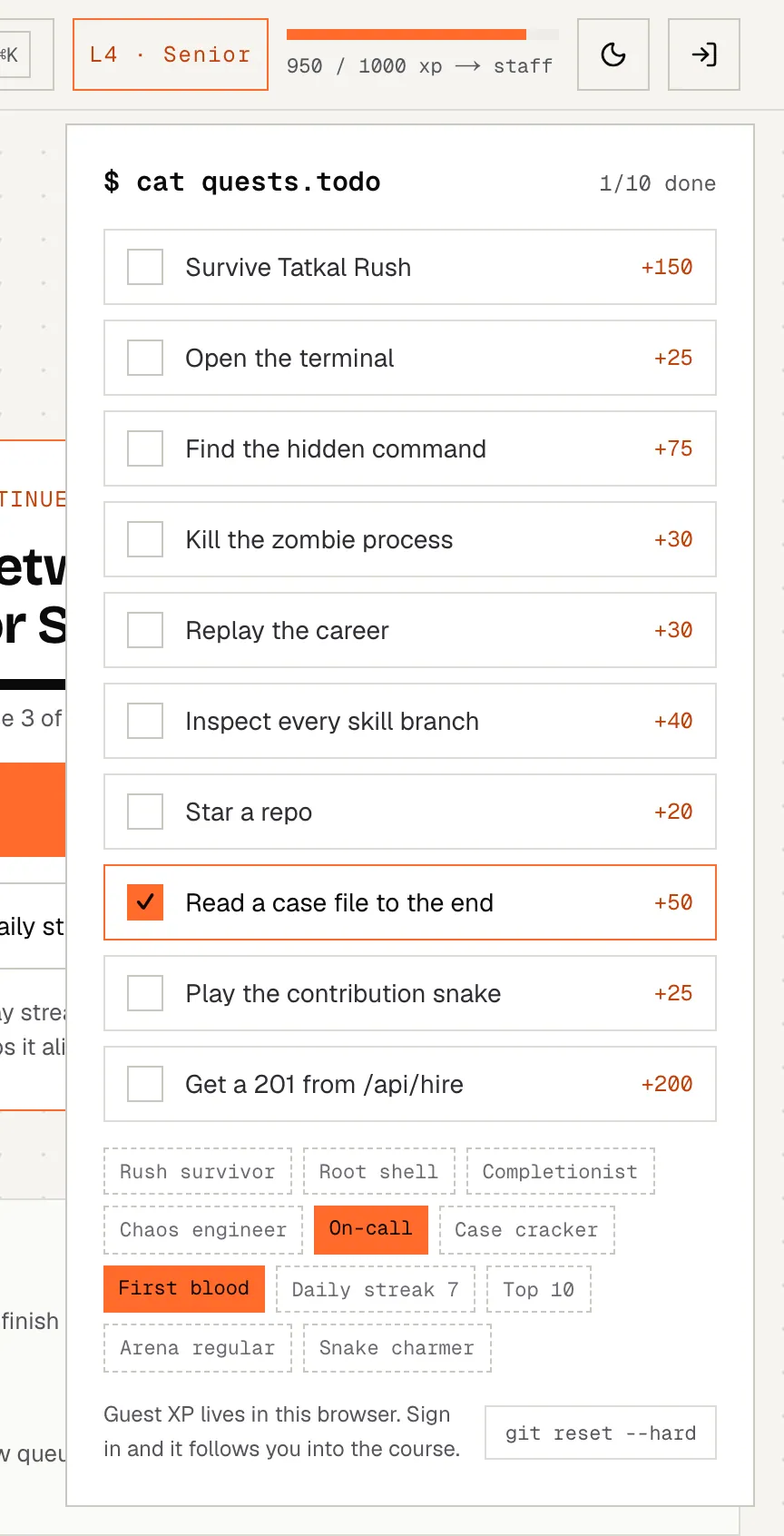
The quest log opened from the level chip: the site's main quests with their XP, and every badge, earned ones in orange.
  1. Level chip: opens the quest log
  2. Main quests with their XP
  3. Badges: orange = earned (hover for how)

Quests are one-time goals with an XP reward: the site's main quests (open the terminal, survive Tatkal Rush, read a case file to the end…) live in the quest log; course quests (First blood, daily streaks, Top 10, each game) are awarded as you play. Badges mark bigger milestones: one per cleared world plus site badges like First blood, Daily streak 7, Top 10, Arena regular and Case cracker. Hover a badge to see how to earn it.

where to find itclick the level chip (e.g. “L4 · Senior”) in the header for the quest log and badges; the progress page lists every badge and an XP log of recent rewards.

09 · your progress page

Everything you've done, in one place.

The Progress tab answers “where am I, how am I doing, what next”. Guests see this browser's data; signed in, your account merged with it.

himanshukukreja.in/learn/dashboard
The Progress page overview: level and XP, course percentage, streak, reading time, lessons done, progress by week, the resume card, next trial and the daily standup.
  1. Level, XP and what the next level unlocks
  2. Course % · streak · reading time · lessons
  3. Progress by week
  4. Resume, next trial part and the standup
  5. Jump to a section
himanshukukreja.in/learn/dashboard
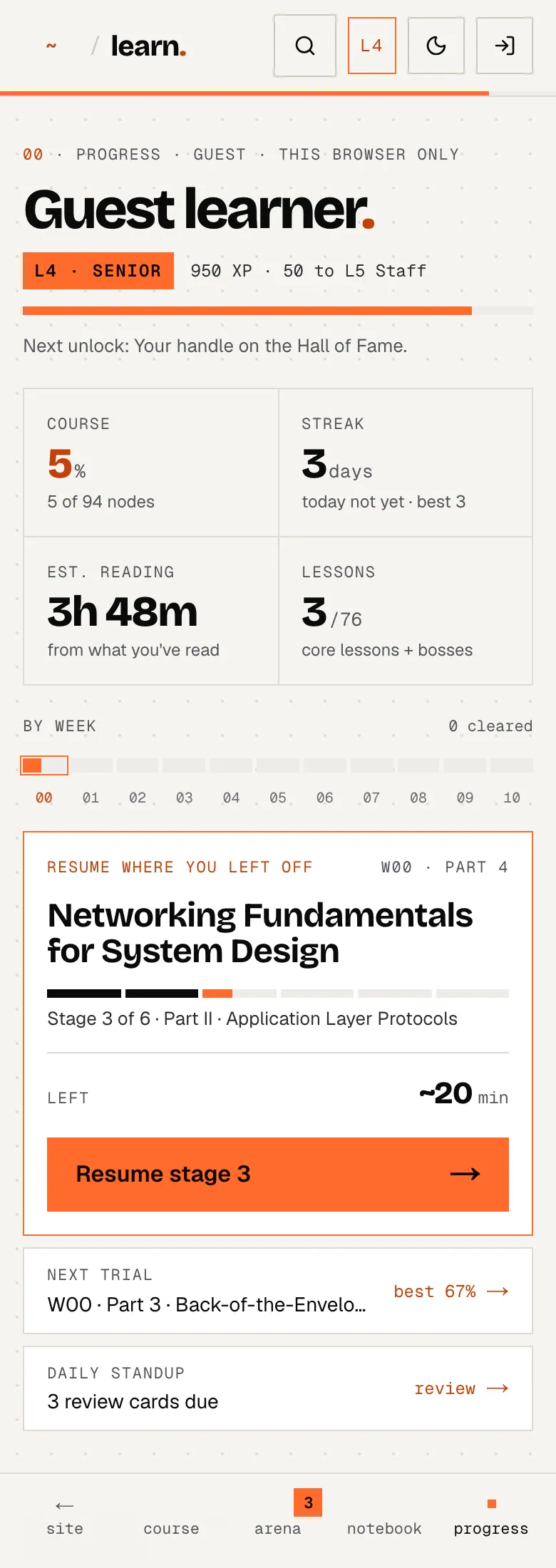
The Progress page on a phone: level, course percentage, streak and the resume card.
  1. Level, XP and what the next level unlocks
  2. Course % · streak · reading time · lessons

Overview: level and XP with what the next level unlocks, course % (lessons, bosses and trial parts done out of all of them), your current streak (days with a cleared stage, a lesson, a trial part or a review), reading time, lessons done and a bar per week. On the right: resume where you left off, the next trial part to take and today's standup.

himanshukukreja.in/learn/dashboard
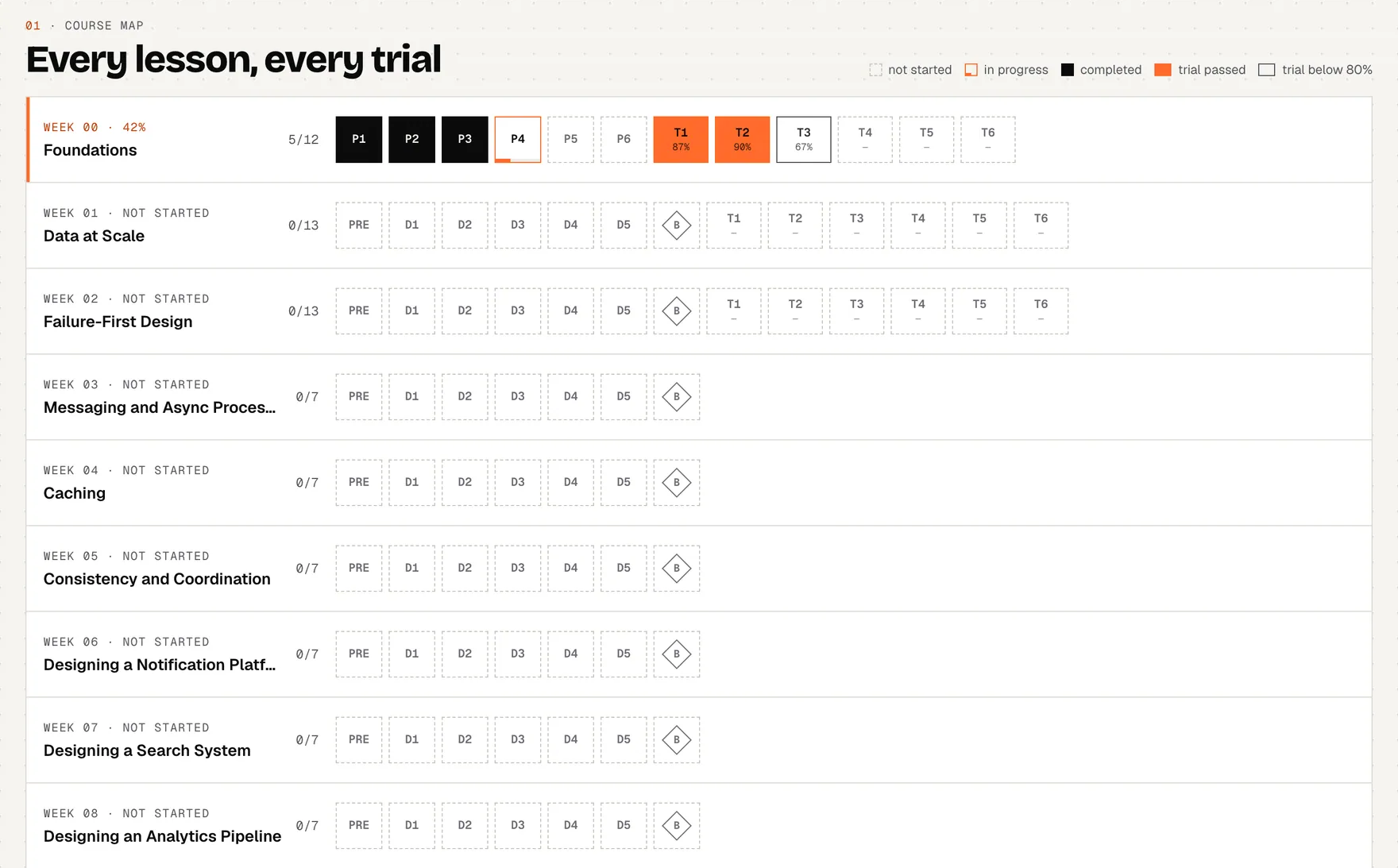
The course map grid: every lesson, boss, trial part and side quest of every week, coloured by status, trial cells showing your best score.
  1. One row per week: done / total
  2. Trial parts show your best score

Course map: every lesson, boss, trial part and side quest of every week as a grid. Black is completed, an orange corner is in progress, orange trial cells are passed (with your best %), outlined ones were tried but below 80%. Click any cell to open it.

himanshukukreja.in/learn/dashboard
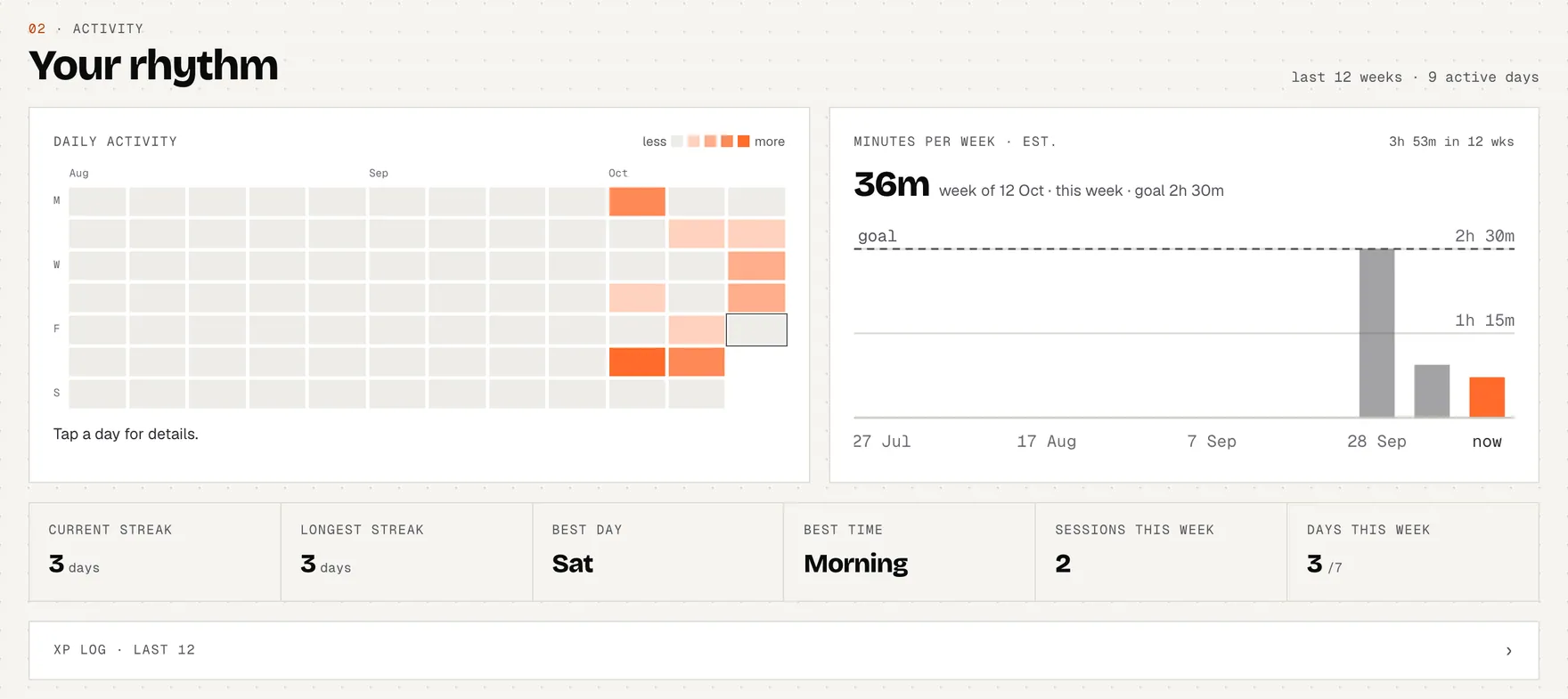
Your rhythm: a 12-week activity heatmap, minutes per week, streak tiles and the XP log.
  1. Daily activity heatmap (12 weeks)
  2. Minutes per week
  3. Streak, best day, sessions this week

Your rhythm: a 12-week heatmap (darker = more done that day; tap a day for details), minutes per week against your goal, current and longest streak, best day and time, and the XP log.

himanshukukreja.in/learn/dashboard
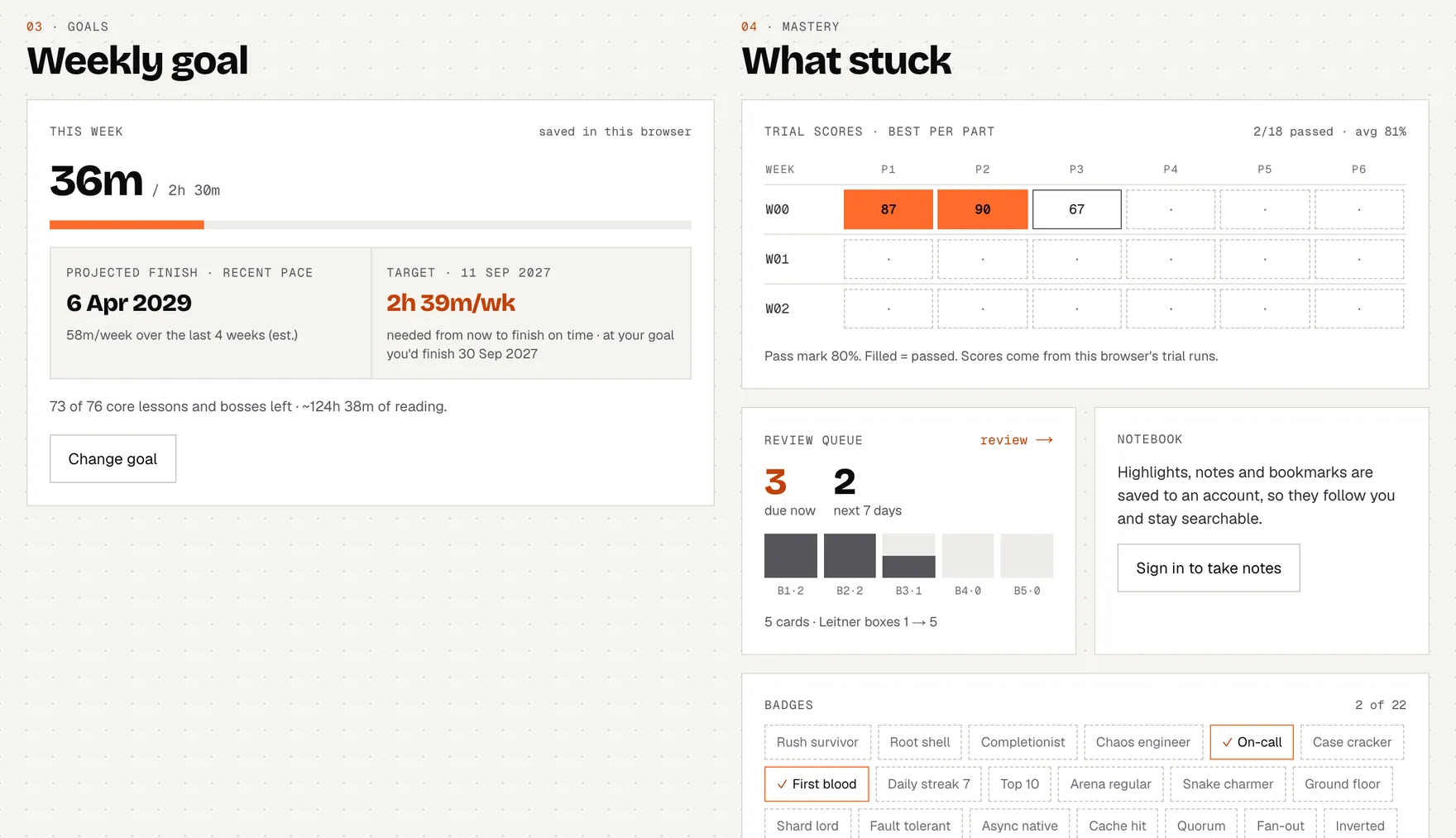
Weekly goal with a projected finish date, and What stuck: trial scores per part, the review queue by box, notebook counts and badges.
  1. Weekly goal: minutes or lessons, optional finish date
  2. Best trial score per part
  3. Badges: earned ones are outlined in orange

Weekly goal: pick minutes or lessons per week and, if you like, a finish date. The page projects when you'll finish at your recent pace and how much a week you need to make your date. What stuck: best trial score per part, review cards by box, Notebook counts and every badge.

Share my progress: turn on a public page for friends and choose what it shows. Off until you turn it on; all of it is in the next section.

himanshukukreja.in/learn/dashboard
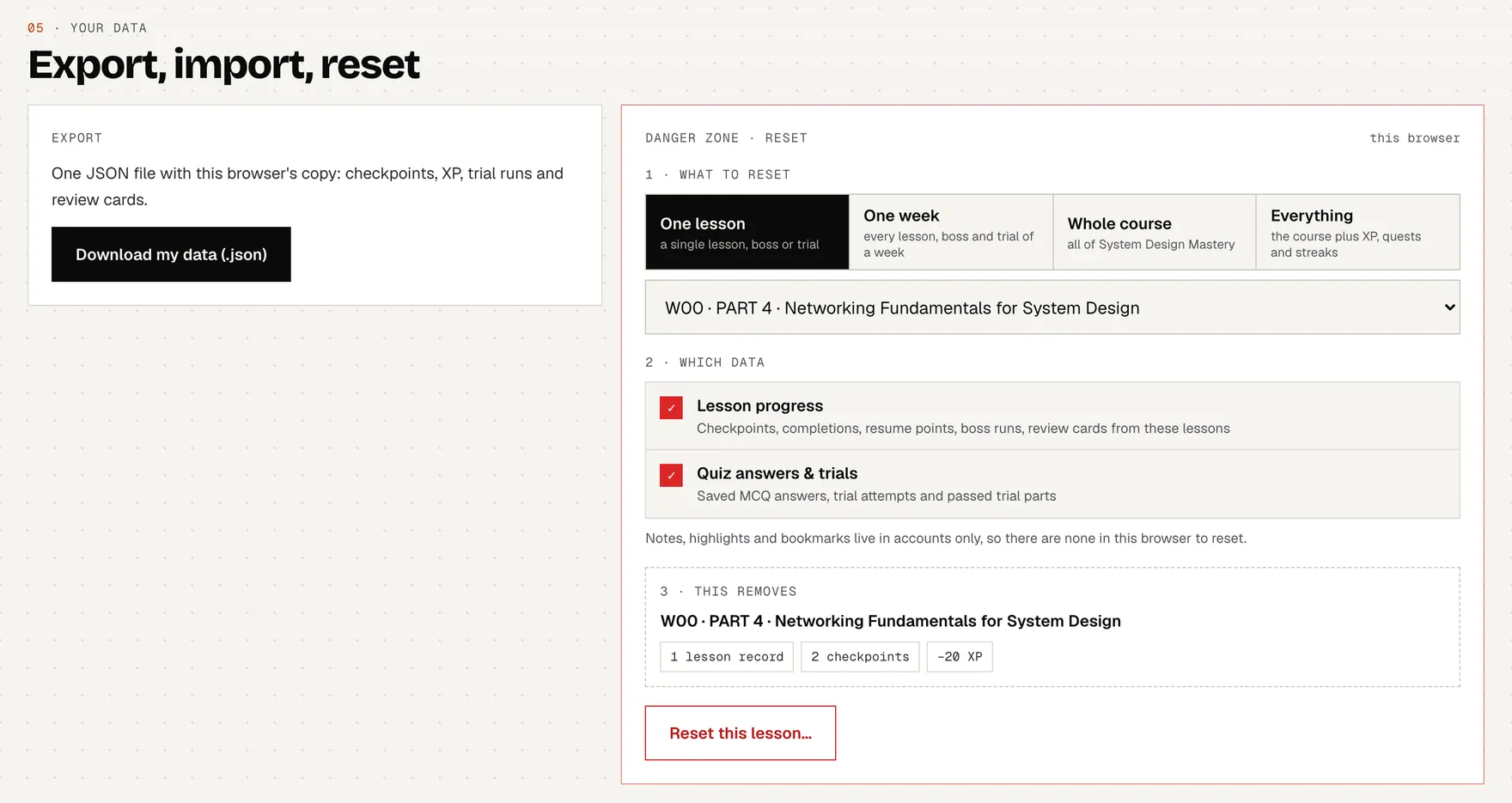
Your data: download everything as JSON, and reset one lesson, a week, the course or everything, choosing which kinds of data to clear.
  1. Download my data (.json)
  2. 1 · What to reset: lesson, week, course, everything
  3. 2 · Which data: progress, quiz answers, notes…

Your data. Download my data saves one JSON file with everything your account holds (signed in) plus this browser's copy. Signed in, an Import card offers to move progress you made as a guest in this browser into your account. Reset clears exactly what you choose, in three steps: what to reset, which data, confirm.

Reset scopes
ScopeWhat it coversData you can clear
One lessona single lesson, boss or trialLesson progress, Quiz answers & trials, Notes & highlights, Bookmarks
One weekevery lesson, boss and trial of a weekLesson progress, Quiz answers & trials, Notes & highlights, Bookmarks
Whole courseall of System Design MasteryLesson progress, Quiz answers & trials, Notes & highlights, Bookmarks, Streaks & activity
Everythingthe course plus XP, quests and streaksLesson progress, Quiz answers & trials, Notes & highlights, Bookmarks, Streaks & activity, XP & quests
  • Lesson progress: Checkpoints, completions, resume points, boss runs, review cards from these lessons.
  • Quiz answers & trials: Saved MCQ answers, trial attempts and passed trial parts.
  • Notes & highlights: Highlights and notes in your notebook (account only).
  • Bookmarks: Saved bookmarks (account only).
  • Streaks & activity: Streak days and the review activity log.
  • XP & quests: Your level, every XP point and site quests, not just the course.
  • A reset can't be undone; the page shows exactly what will be removed before you confirm.

where to find itthe progress tab. Sections: overview · map · activity · goals · mastery · share · data (the sticky row under the header jumps between them).

10 · share your progress

Show your run to friends.

Your progress is private. Turn on a public page and you get one link, showing only the parts you pick, to send on WhatsApp, LinkedIn or X.

himanshukukreja.in/learn/dashboardexample data
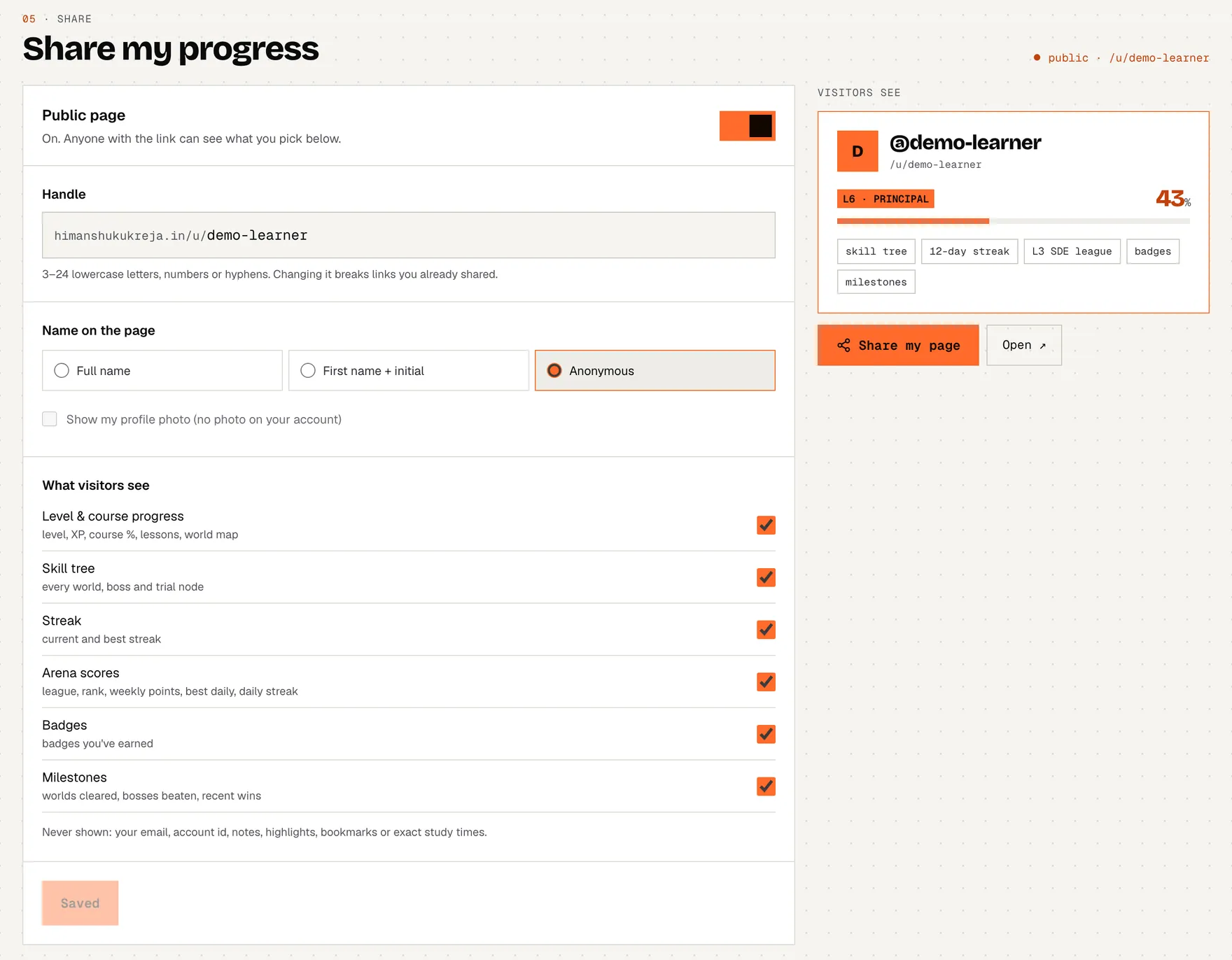
Progress page, 05 · share: the Public page switch, the handle for your /u/ link, the name shown, six switches for what visitors see, a live preview of the page and the Share my page button.
  1. Public page: off until you turn it on
  2. Your handle: the link is himanshukukreja.in/u/<handle>
  3. Name: full, first name + initial, or anonymous
  4. What visitors see: six switches
  5. Never shown: email, notes, highlights, bookmarks
  6. Live preview of your page
  7. Share it, or open the page as visitors see it
himanshukukreja.in/learn/dashboardexample data
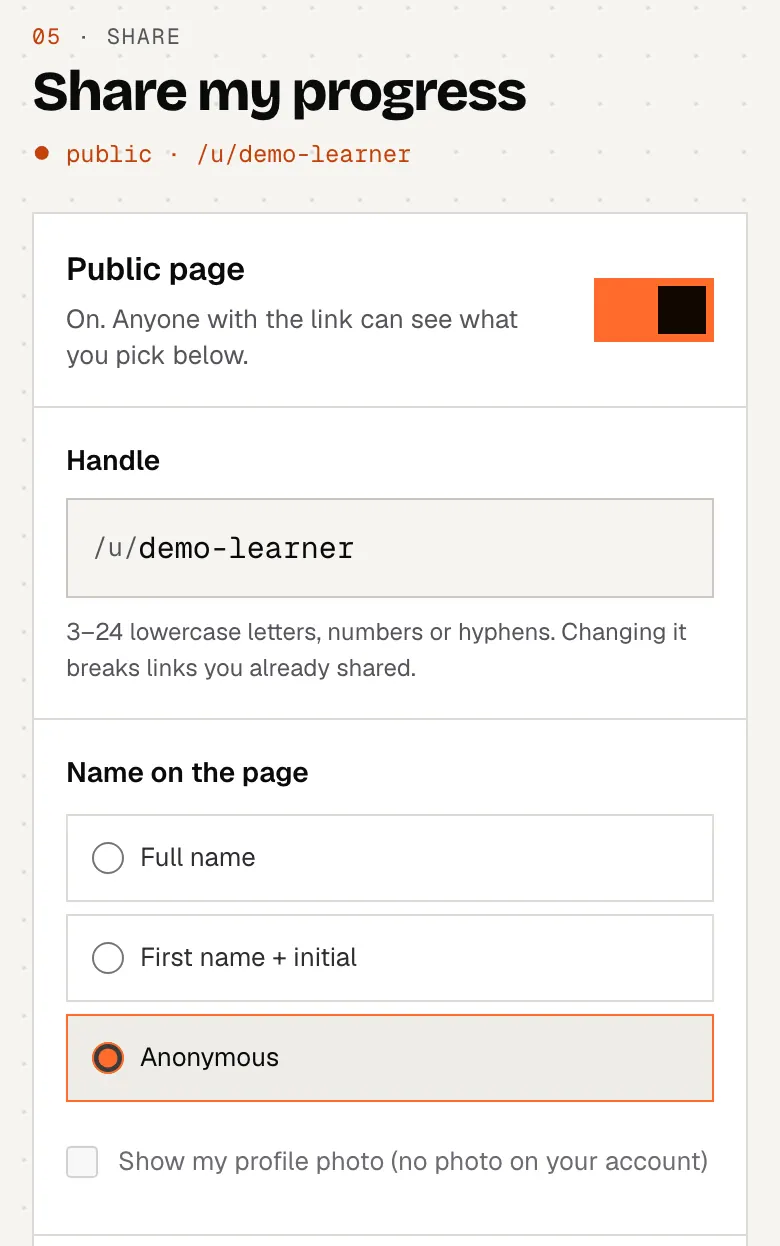
The share settings on a phone: the Public page switch, the /u/ handle and the name shown on the page.
  1. Public page on or off
  2. Your handle
  3. Name: full, first + initial, or anonymous
Shown signed in with an example learner who chose to be anonymous.

Turn it on in the share section of the Progress page (it needs an account). The Public page switch is off until you flip it or press Publish my page. While it's off nobody can see your progress, and switching it off again makes your link show a 404 straight away.

Handle. Your page lives at himanshukukreja.in/u/<handle>. A handle is 3–24 lowercase letters, numbers or single hyphens. One is suggested from your name, and whatever you type is checked as you go: taken, reserved and offensive handles are refused. Changing it later breaks links you already sent.

Name on the page: your full name, first name + initial or anonymous (just the @handle); new pages start with first name + initial. Your profile photo appears only if you tick it, your account has one and you aren't anonymous. Then pick what visitors see (all six start on). The preview on the right follows every change, and Save changes updates a live page at once.

What visitors can see
SwitchWhat it shows
Level & course progresslevel, XP, course %, lessons, world map
Skill treeevery world, boss and trial node, read-only
Streakcurrent and best streak
Arena scoresleague, rank, weekly points, best daily, daily streak
Badgesbadges you've earned
Milestonesworlds cleared, bosses beaten, recent wins
Never on your page

Your email, account id, notes, highlights, bookmarks and exact study times are never shown, whatever you switch on. Public pages are kept out of search engines, and a handle that doesn't exist looks exactly like one that's switched off (both are a 404), so nobody can check who has a page.

The share sheet

himanshukukreja.in/learn/dashboardexample data
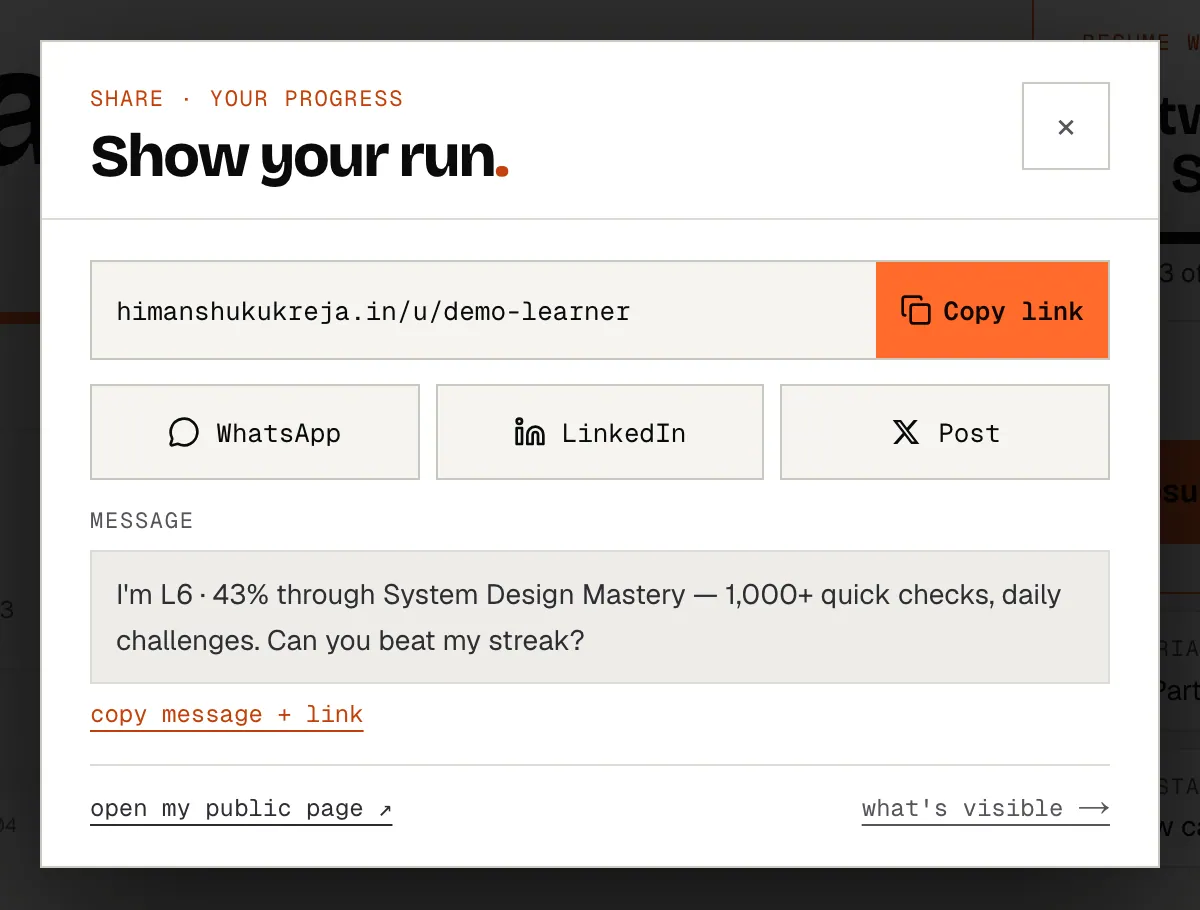
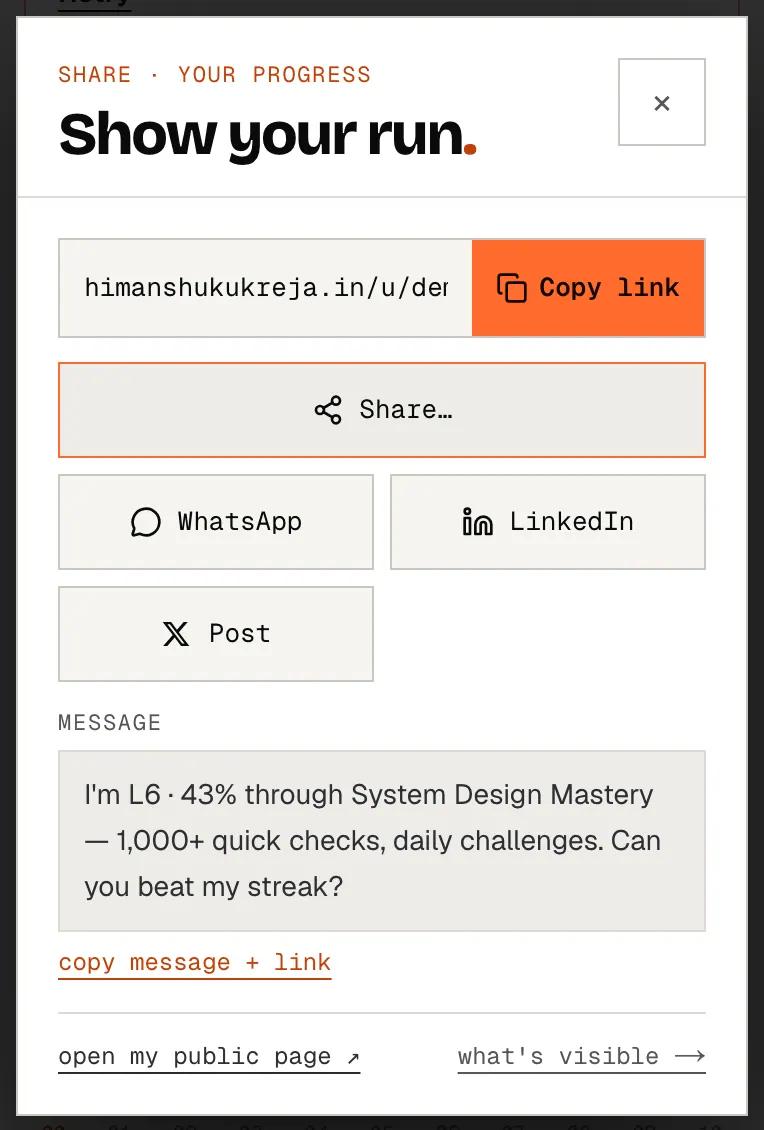
The share sheet: your public link with Copy link, buttons for WhatsApp, LinkedIn and X, the prefilled message, and links to open your page or change what's visible.
  1. Your link, ready to copy
  2. WhatsApp, LinkedIn or X with the message filled in
  3. The message; copy it together with the link
  4. Open your page, or change what's visible
himanshukukreja.in/learn/dashboardexample data
The share sheet: your public link with Copy link, buttons for WhatsApp, LinkedIn and X, the prefilled message, and links to open your page or change what's visible.
  1. Your link, ready to copy
  2. Share…: your phone's own share sheet
  3. WhatsApp, LinkedIn or X with the message filled in
  4. The message; copy it together with the link
  5. Open your page, or change what's visible

Every Share button opens the same sheet: your link with Copy link, WhatsApp, LinkedIn and Post (X) with a message already written, and copy message + link. On a phone, Share… opens your phone's own share menu.

Page still off? The sheet offers Turn on & get my link (it publishes with your saved choices, or the defaults) or Choose what's visible, which brings you to the settings. As a guest it asks you to sign in to get your share link, and the progress in this browser comes with you; you can also share the course itself instead.

Where the Share buttons are
WhereButtonThe link opens
Progress page, under your levelshare my progressyour page
Progress page, share sectionShare my pageyour page
Course hub, next to Skill treeShareyour page
Daily challenge resultChallenge a friendtoday's daily challenge (works without a page or an account)
World cleared, level upShare itthat world's or level's achievement page
Boss debrief, after a winShare the winthat boss's achievement page
End of a lesson, once completeShareyour page
Progress page, badgesshareyour page
Leaderboard, your own rowshare iconyour league rank's achievement page

Your public page

himanshukukreja.in/u/demo-learnerexample data
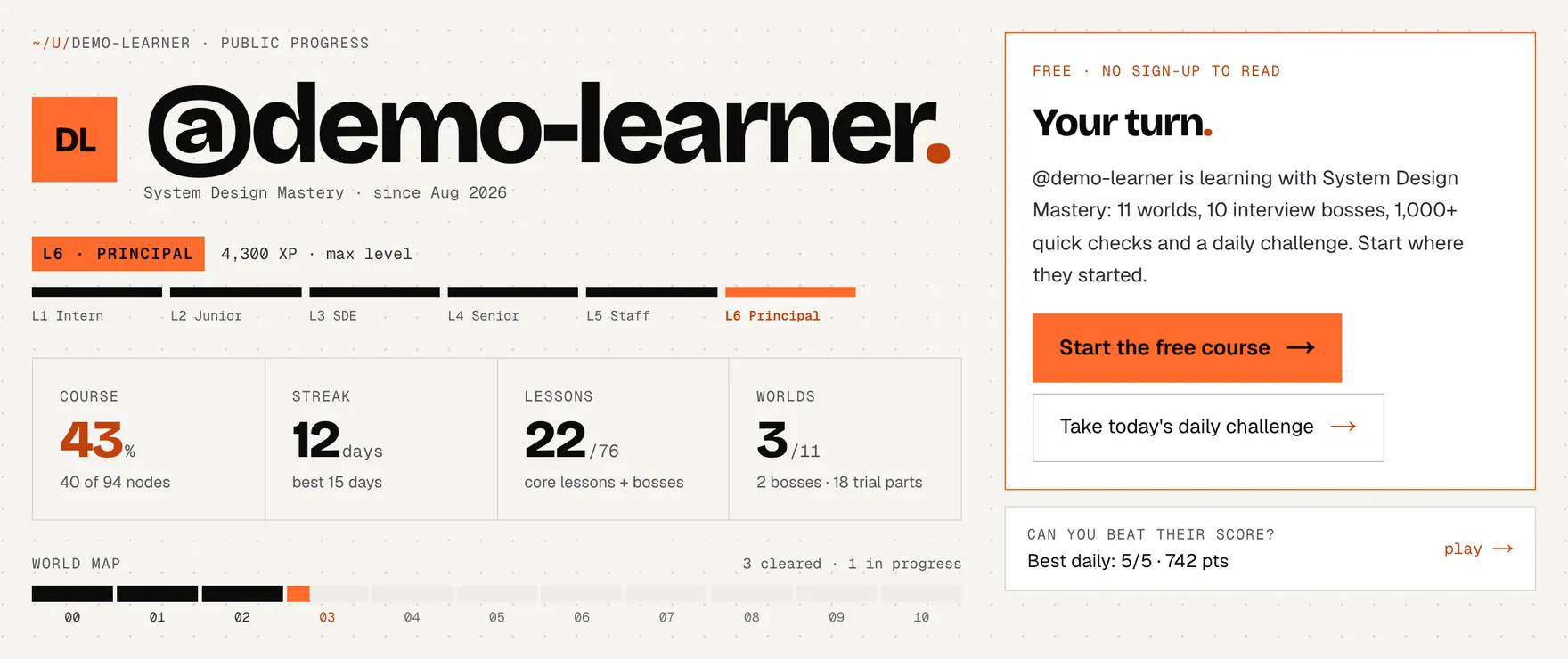
A public progress page at /u/demo-learner (example data): the handle, the level on the L1 Intern to L6 Principal ladder with XP, course percentage, streak, lessons and worlds, a world map, and buttons for visitors to start the free course or take today's daily challenge.
  1. Name, first name + initial, or @handle (anonymous here)
  2. Level on the L1 Intern → L6 Principal ladder, with XP
  3. Course %, streak, lessons and worlds
  4. World map: one bar per world
  5. Visitors can start the free course or today's daily challenge
  6. Your best daily, as a challenge
himanshukukreja.in/u/demo-learnerexample data
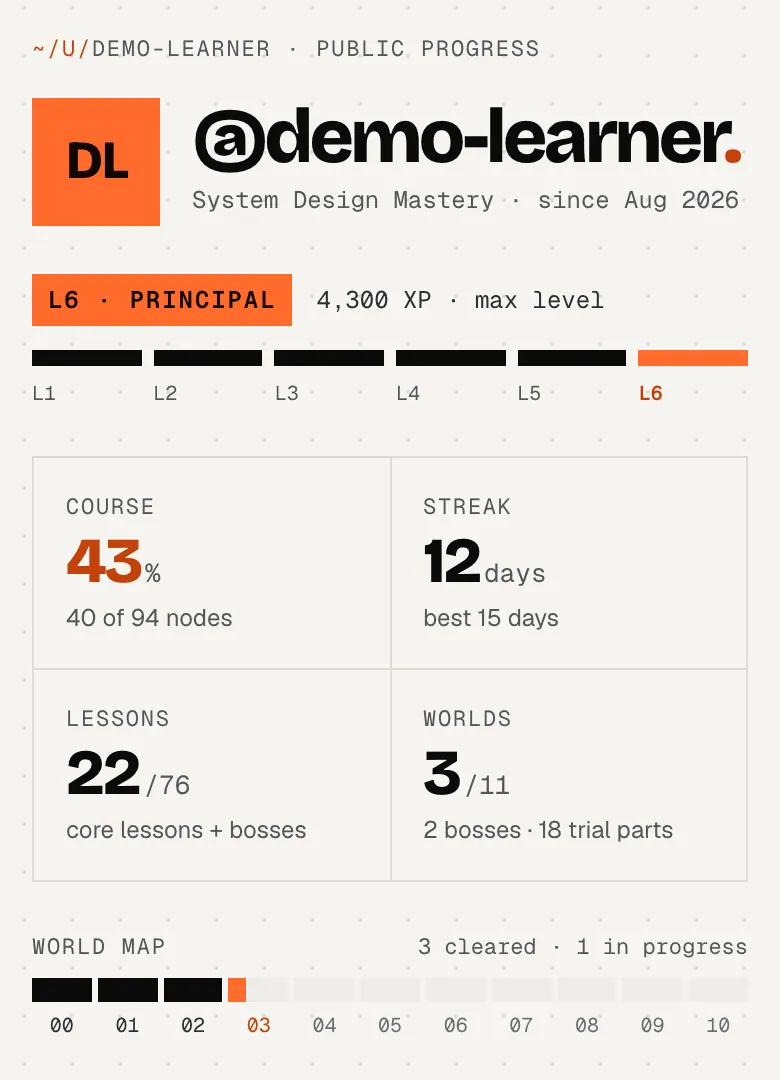
The same public page on a phone: handle, level ladder, the four numbers and the world map.
  1. Name or @handle
  2. Level and XP
  3. Course %, streak, lessons, worlds

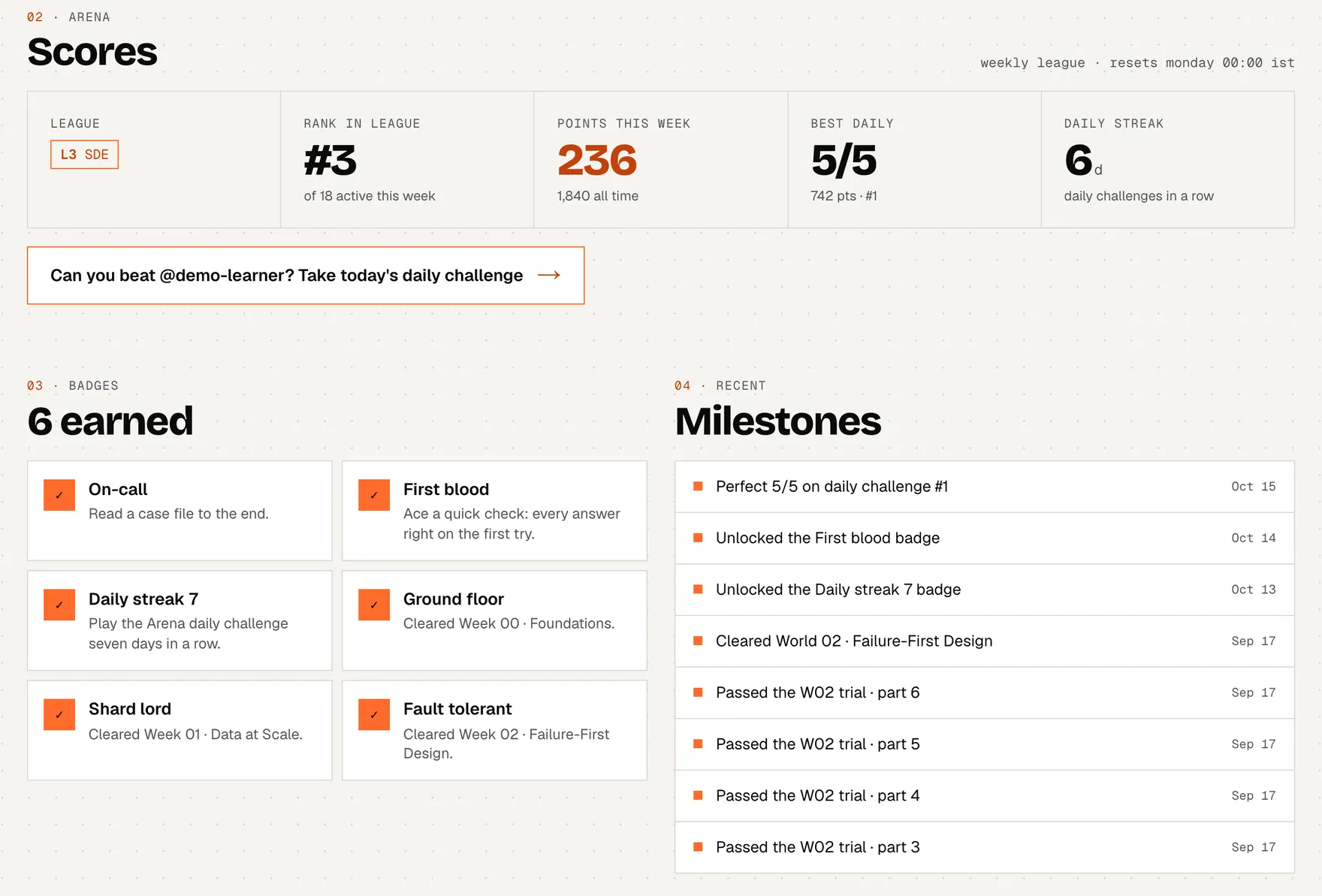
What a friend sees when they open your link, no account needed: your name or @handle, your level on the L1 Intern → L6 Principal ladder with XP, course %, streak, lessons and worlds done, a world map, a read-only copy of your skill tree, your Arena scores, badges and recent milestones. Each part is there only if its switch is on.

The page ends with an invitation: Start the free course or Take today's daily challenge, plus “Can you beat …?” next to your scores. When you open your own page signed in, a “your page” bar adds Edit what's visible and Share; visitors never see it.

himanshukukreja.in/u/demo-learnerexample data
Further down the public page: Arena scores (league, rank in league, points this week, best daily, daily streak) with a challenge link, the badges earned and recent milestones.
  1. Arena: league, rank, weekly points, best daily, daily streak
  2. “Can you beat …?” opens today's daily challenge
  3. Badges earned
  4. Milestones; each big one has its own share page
himanshukukreja.in/u/demo-learner/a/world-02example data
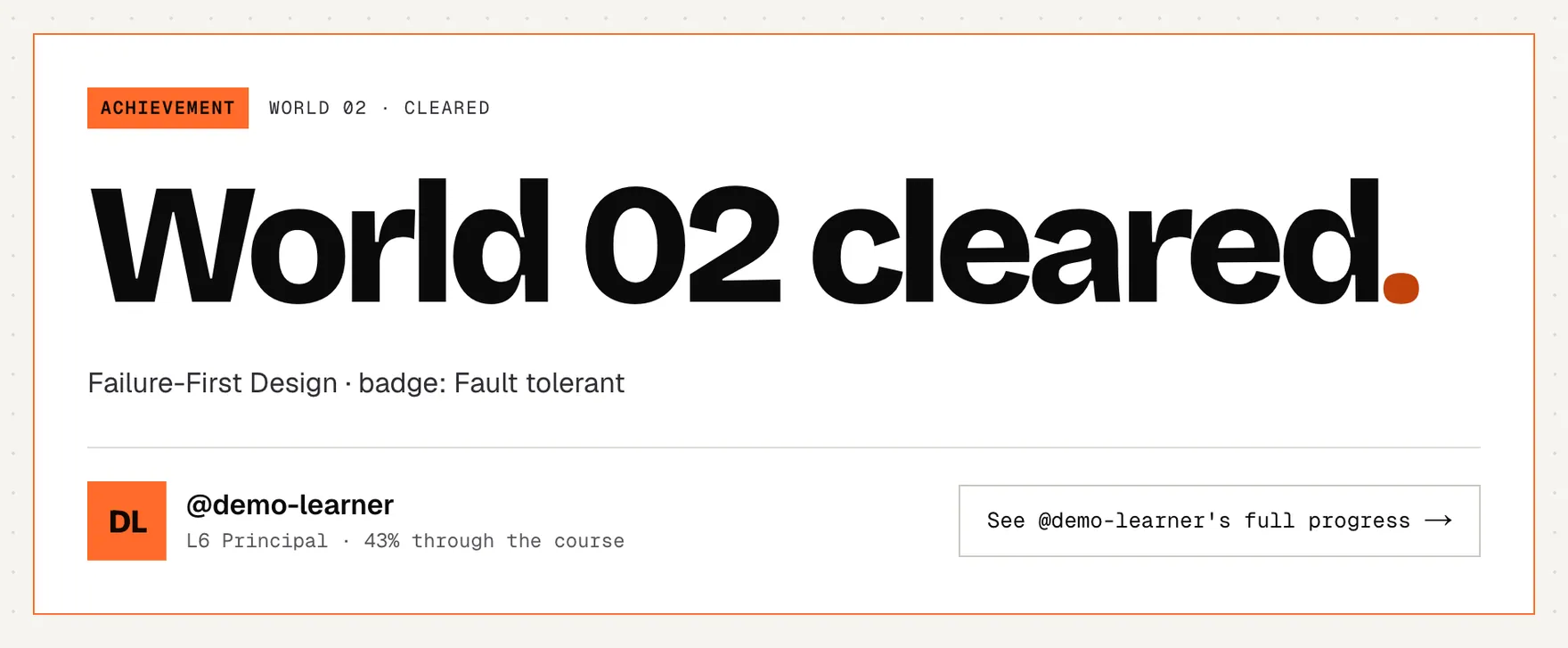
An achievement page (/u/demo-learner/a/world-02): World 02 cleared, with the world's badge and a link to the learner's full progress.
  1. One achievement, big: here a cleared world
  2. Back to the learner's full page

Achievement pages (/u/<handle>/a/…) show one win, big: a cleared world, a beaten boss, a level, your streak, your best daily, your league rank this week or a badge. They exist only for what your page shows; otherwise the link opens your page.

Link previews. Paste your link into WhatsApp, Slack, LinkedIn or X and it unfolds into a preview card of your page or the achievement.

Who came from your link

When someone arrives through your link and creates an account within 30 days, the sign-up is counted for your link (the first link a browser arrived from is the one that counts). Only the site owner sees these numbers, and nothing about the visitor appears on your page.

where to find itthe share section of the progress page (signed in); the Share buttons above, at the moments worth sharing; your page itself at /u/<handle>.

11 · case files

Case files: real stories, with a drill at the end.

Production incidents, rush hours and build logs told as stories with blueprints. They live outside the course, under Case files.

himanshukukreja.in/stories
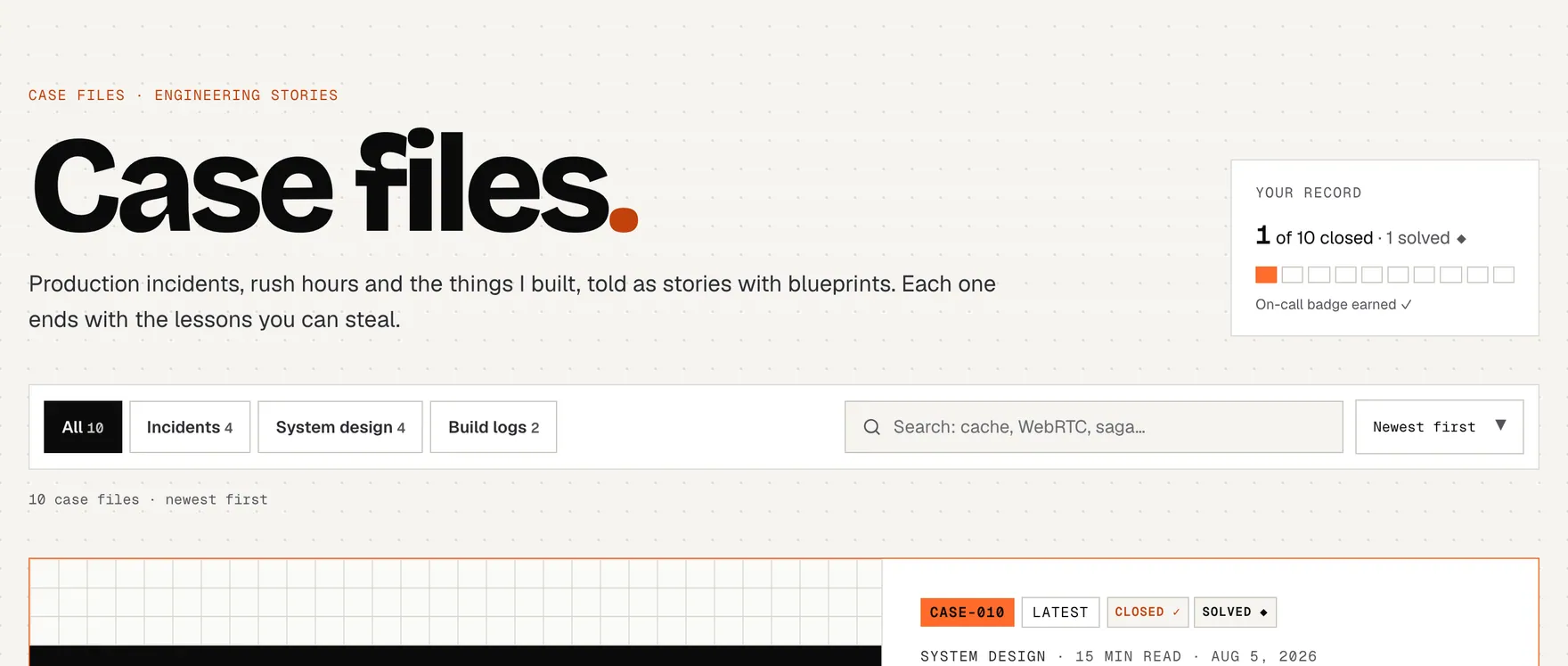
The Case files index: your record of closed and solved cases, filters by type, search, and the latest case file.
  1. Your record: cases closed (read) and solved (activity)
  2. Filter: incidents, system design, build logs

A case file is closed when you have read it: the same reading rules as lessons apply to its checkpoint sections, or use “Close the case” once most of the reading time is in. Reading your first case file to the end is a quest (+50 XP) and earns the On-call badge. A case can also end with a debrief question (the Tatkal case does): make the right call for +50 XP, one answer per case.

11 case files end with an interactive activity: a simulation or spot-the-bug drill in a few steps. Score 70% to solve it for +25 XP; rerun it as often as you like to raise your best. Solve all of them for the Case cracker quest (+150 XP) and badge.

himanshukukreja.in/stories/irctc-tatkal-500-seats-2-million-users
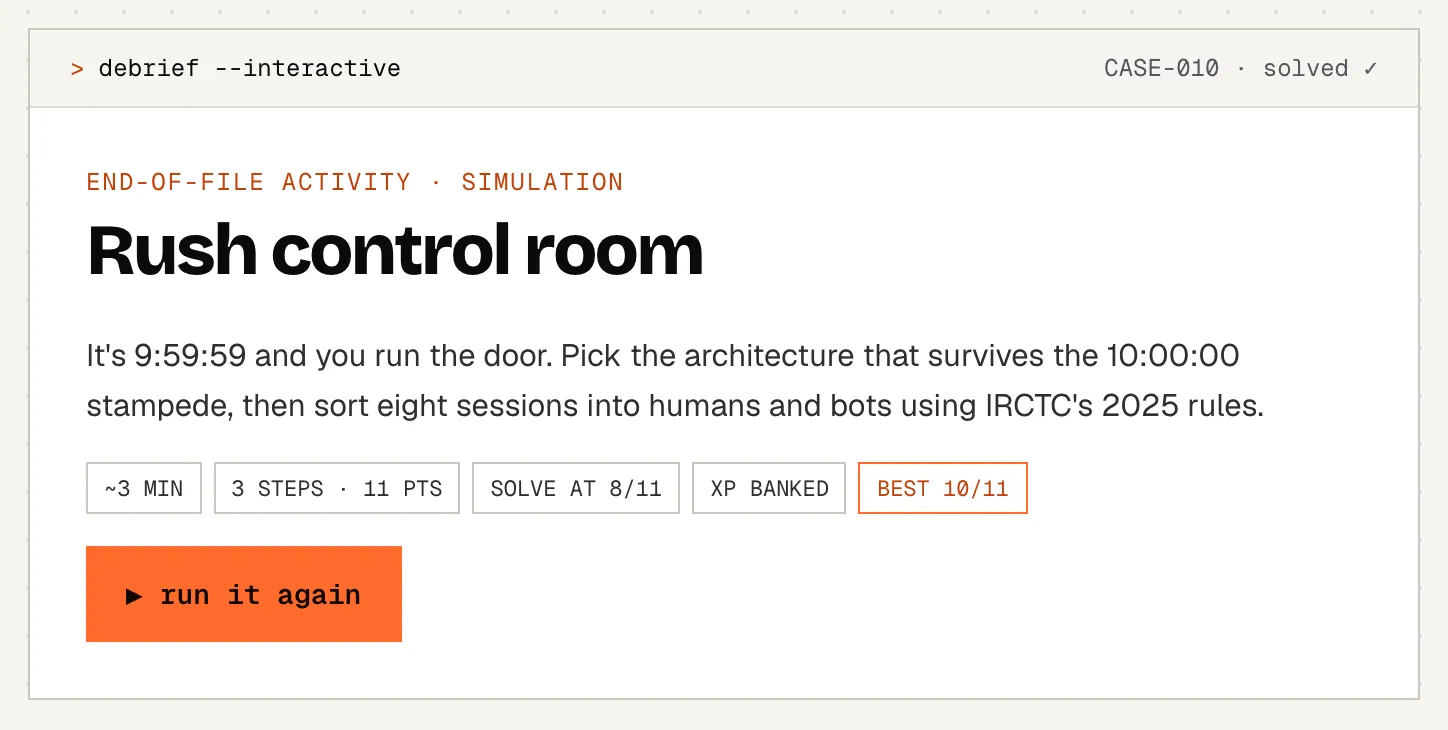
The interactive activity at the end of a case file: steps, the score needed to solve it and the XP it pays.
  1. End-of-file activity: solve it at 70% for +25 XP
  2. Score needed to solve it, and your best so far
  3. Run (or rerun) the drill

where to find itCase files in the site header (outside the course). Your record (closed · solved) is at the top of the index.

12 · accounts, privacy & data

Do you need an account?.

No. Every lesson, quick check, trial, boss, game and the daily challenge work without one. An account adds a few things.

  • Progress on every deviceLessons, stages, XP, review cards and trial attempts follow you instead of living in one browser.
  • NotebookHighlights, notes and bookmarks are account-only.
  • Leaderboard & leaguesOnly signed-in activity is ranked.
  • Nothing lostClearing your browser or switching phones keeps your history.
  • Share your progressA public page and share links come from your account. Off until you turn it on.

Sign in with Google or an email code from the arrow button in the header. The first account that signs in on a browser picks up that browser's guest progress; a second account on the same browser starts from its own.

What's stored: page views and reading time, learning events (lessons opened and completed, answers, games), and if you sign in your email, name and progress. No ads, nothing sold, and nothing about you is public unless you turn on a share page. The privacy page lists every tool and has a switch to turn analytics off in your browser (also “opt out” in the site footer).

where to find itsign in from the header; progress → your data to export or reset; privacy & analytics to opt out.

13 · faq

Questions people actually ask.

Why didn't my lesson complete?
A stage only counts after real reading time in it with most of it on screen. Jumping through the contents, scrolling fast, leaving the tab in the background or sitting idle doesn't count. Look at the stage rail: stages without a ✓ still need reading. The Finish card at the end tells you how many minutes are left before Mark complete unlocks. Optional stages (exercises, appendix, further reading) never block completion.
Do I need an account?
No. Everything works as a guest. Sign in to keep progress across devices, use the Notebook and be ranked on the leaderboard. Anything you did as a guest in that browser is merged in when you first sign in.
I cleared my browser (or changed phones) and my progress is gone.
As a guest, progress lives only in that browser, so clearing site data removes it. Signed in, it's in your account: just sign in again. To keep a copy either way, use Download my data on the progress page.
What's the difference between a highlight, a bookmark and a checkpoint?
A highlight marks a sentence in colour. A bookmark saves a place (a passage or the whole lesson) with a title. Both go to the Notebook. Save checkpoint only remembers where you are in a lesson for resuming and progress.
How are leaderboard points different from XP?
XP is your personal running total (guest or signed in) and sets your level. Points are a weekly score for signed-in learners, counted only from activity the server can check, capped at 400 a day, and they decide your league. See XP vs points.
Why am I in the Intern league when my level is Senior?
Leagues and levels share names but aren't linked. Your level comes from all-time XP; your league moves one step at a time, week by week, from where everyone starts (L1 Intern).
A trial part says Locked. Can I take it?
Yes. A part opens when you finish the lesson it tests, so you are tested on what you just read, but the part's page has a Start anyway button.
I failed a trial part. When can I retry?
After a 10-minute rest, with the options shuffled again. Your misses are already in your review queue, so the standup is a good way to spend those minutes.
What does “due” mean?
A review card is due when its next date is today or earlier. The number next to the Arena tab is how many cards are due right now.
Why do I see two different streaks?
The course streak (hub and progress page) counts days with a cleared stage, a finished lesson, a passed trial part or a reviewed card. The daily streak in the Arena only counts days you played the daily challenge.
Can other people see my progress?
Not unless you turn on your public page in Progress → share; it's off by default. You pick the handle, the name shown (full, first name + initial or anonymous) and which of six parts appear. Your email, notes, highlights, bookmarks and exact study times are never shown. Switch it off and the link shows a 404 at once.
Why does Share ask me to sign in?
Your public page is built from your account, so a share link needs one. Signing in is free and the progress in this browser comes with you. As a guest you can still share the course, and Challenge a friend after the daily challenge works without an account.
Does replaying the daily challenge count?
No, only your first run of the day counts for XP, points and the streak. Replays are practice.
Does re-reading a lesson reset it?
Never. Completed stays completed and percentages never go down. Only the Reset on the progress page removes progress.
Does listening count as reading?
Yes. While Listen is reading the lesson aloud, the time counts even if you don't touch the screen.
How do I start over?
Progress page → Your data → Reset. Choose one lesson, one week, the whole course or everything, and which kinds of data to clear. Download your data first if you might want it back.
14 · glossary

Words the course uses.

World
One week of the course: its lessons, a boss and (where there is one) a trial. Clearing all of it earns the world's badge.
Lesson
One reading in a world: the Preview, a Day, a Foundations part, a boss capstone or a side quest.
Stage
A part of a lesson (Part I, Part II, Phase 1…). Progress, XP and resuming all work by stage.
Quick check
A short multiple-choice block inside a lesson. The first try is the one that pays XP.
Trial
A world's multiple-choice test, split into parts. Each part tests one lesson; pass mark 80%.
Boss
The world's capstone: a full system design interview with timed phases, fought in interview mode or read.
Side quest
A bonus problem: a real system (UPI, Netflix, Uber…) designed end to end. Open any time.
XP
Experience points: your personal total from everything you do. Sets your level.
Level
L1 Intern to L6 Principal, from your XP. Shown in the header.
League
Your weekly leaderboard division (same names as levels). Top players move up every Monday.
Streak
Consecutive days with learning activity (a stage, lesson, trial part or review). The daily challenge has its own streak.
Daily standup
The review queue's daily session: today's due cards, graded Again / Hard / Good / Easy.
Leitner box
One of five review boxes. Higher boxes come back less often, Box 5 about monthly.
Due
A review card whose next date is today or earlier: it's waiting in today's standup.
Checkpoint
Your saved place in a lesson (Save checkpoint). Where Continue and Resume take you.
Public page
Your optional page at /u/<handle>, showing the parts of your progress you chose. Off until you turn it on.
Handle
The name in your public link: lowercase letters, numbers and hyphens, picked in Progress → share.
Case file
A story from real production work, outside the course, often ending with an interactive activity.